
BatteryMeter
BatteryMeter puts your MacBook's charge, the direction it is moving and the battery's power in watts in the menu bar. It is free. There is no email to give, no account, no trial and no license key.
Version 1.0.0, released October 13, 2026. ZIP file, 404,356 bytes (395 KB). Open it and move BatteryMeter to Applications.
Requires macOS 13 or later on a Mac with Apple silicon. Intel Macs are not supported. The app is notarized (checked by Apple) and signed with a Developer ID.
SHA-256 (a fingerprint you can use to check the download): edebed0cace3202f4ce72a29e0d2c91733869e3d2fcfb6a25ccfee9f68f368d0
Made by Purplelink LLC, a one-person studio. Not on the Mac App Store.
Watch it work
BatteryMeter in the menu bar
A short video of the app. The transcript below lists what it shows.
Watch on YouTube or download the vertical version (MP4, 9:16)
Transcript and what is on screen
The narration, line by line:
- A free Mac battery meter that shows more.
- A real reading: percent, an arrow, and watts.
- A sample. The arrow points down while it drains.
- Another sample. Orange at 20 percent or below.
- The menu adds time left, volts, adapter, and cycles.
- Hide Apple's icon, then hold Command and drag BatteryMeter in.
- Free for Apple silicon Macs. No email, no account.
The scenes labelled "Sample values" use made-up numbers, not a live reading. The scene labelled "Live reading" is a real reading from a Mac.
What it shows
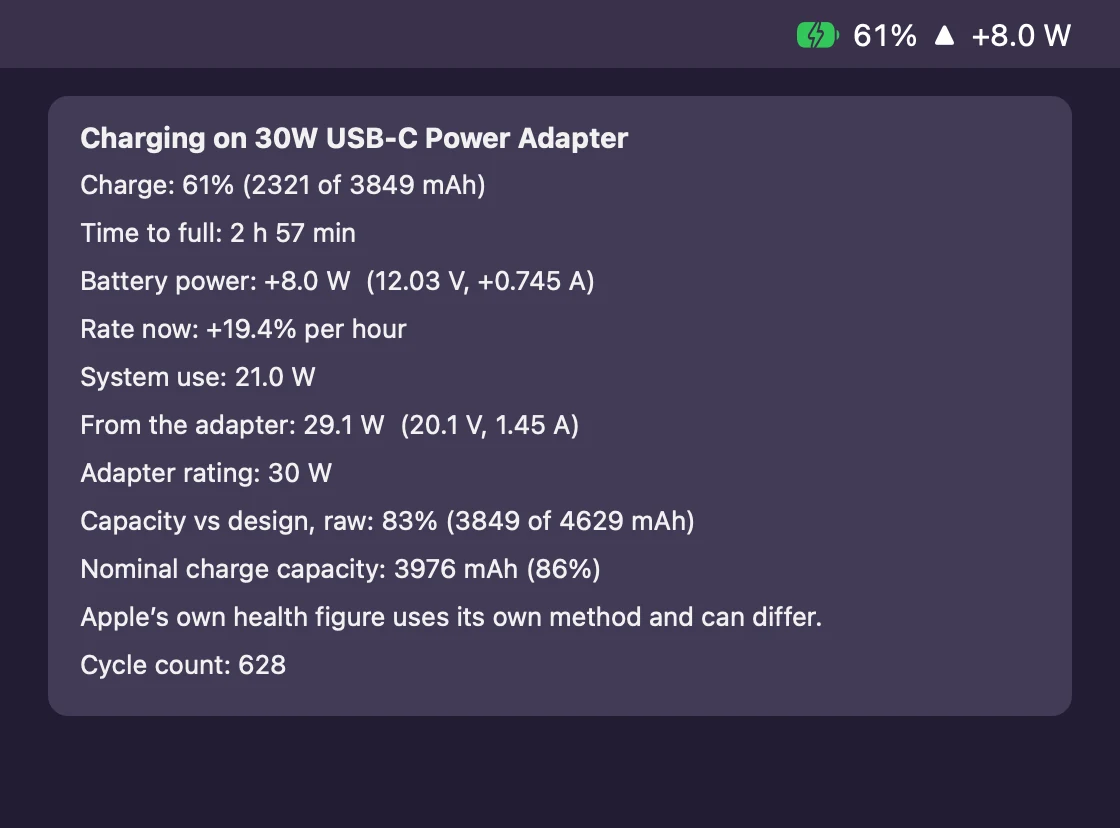
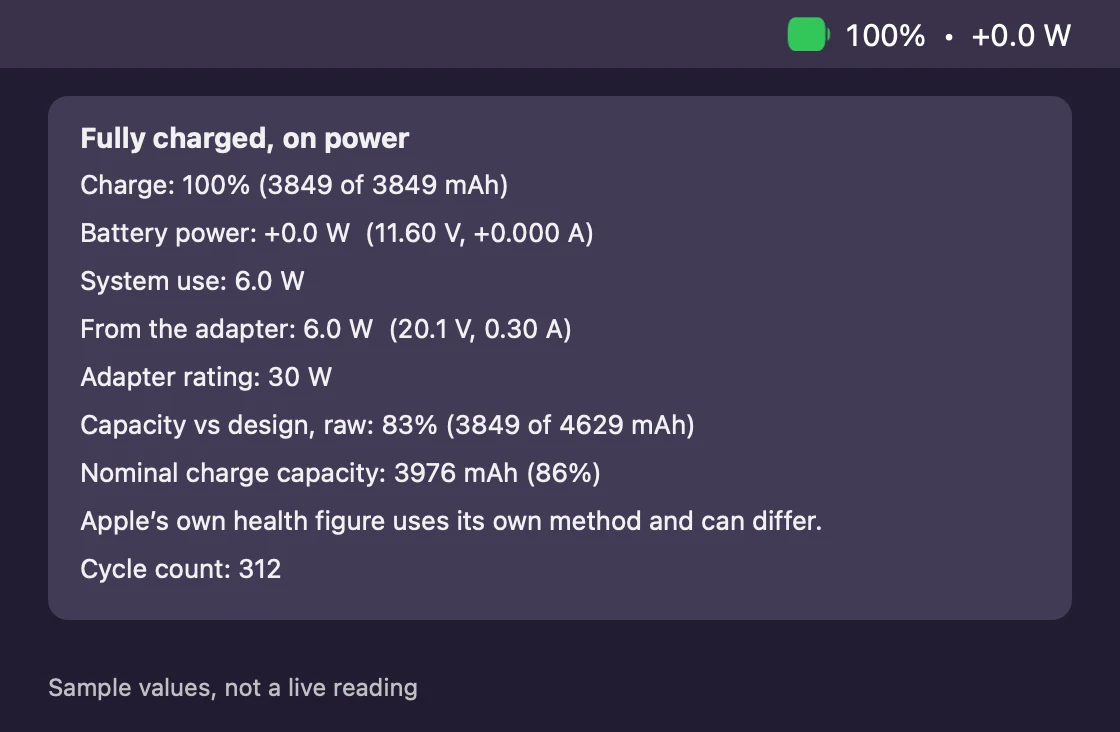
The first screenshot, at the top of this page, is a live reading from a MacBook. The three below are not. The app drew them with sample values, and each says "Sample values, not a live reading" in the image.
On battery, sample
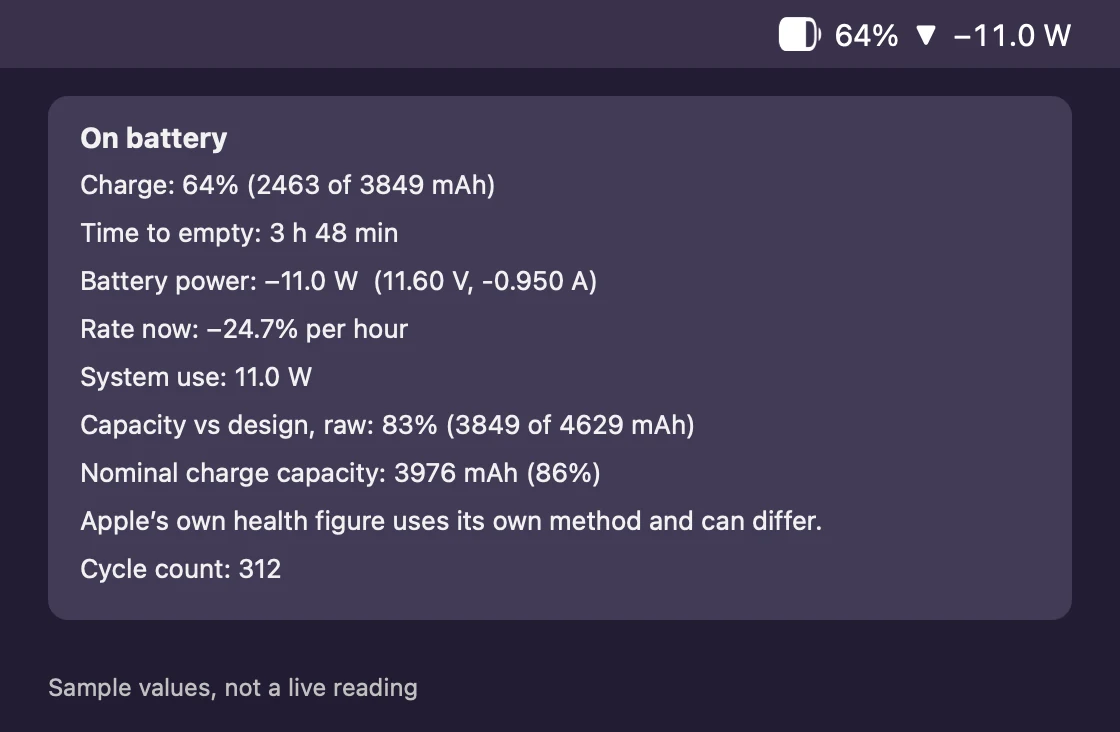
Low charge, sample
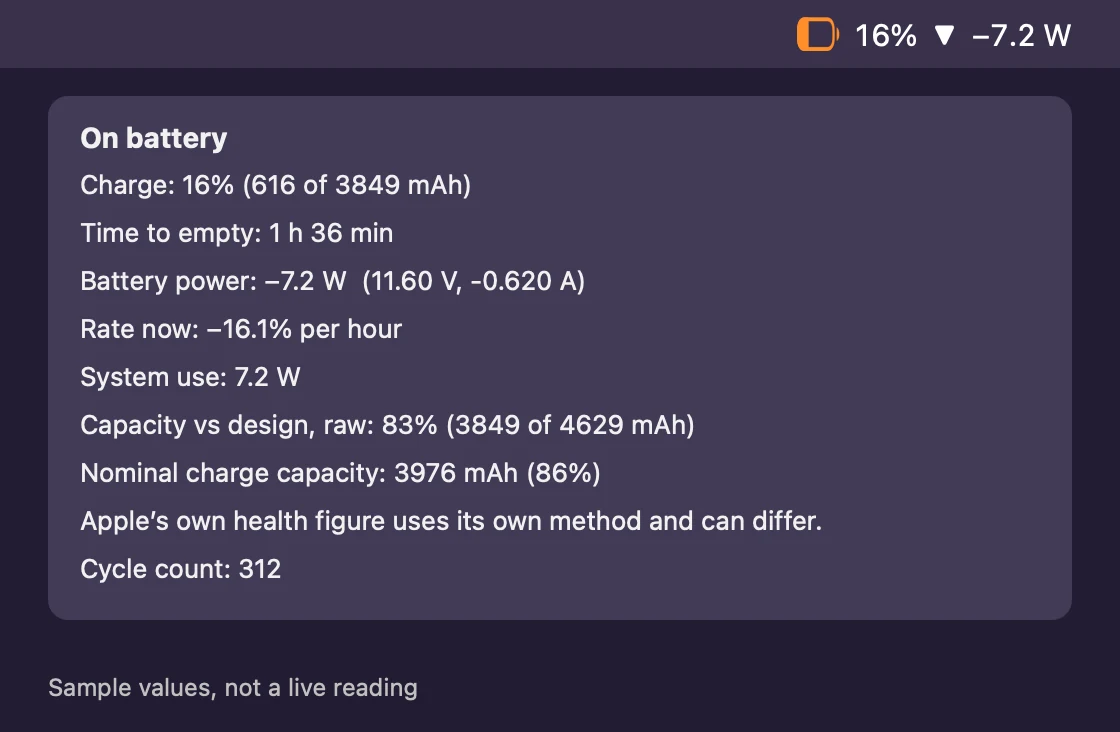
Full and on power, sample
What it does
| Menu bar | A battery icon, the percent, an arrow and the battery's power in watts (W, the rate of energy flow). The arrow points up while the charge rises, down while it falls and shows a dot when it is steady. Power has a plus sign while charging and a minus sign while draining. |
|---|---|
| Colors | Green while charging. Orange at 20 percent or below on battery. Red at 10 percent or below. The icon fill animates while charging, follows the macOS Reduce Motion setting and can be turned off. |
| Menu bar text | Choose percent only, percent and power, percent and time, or all three. |
| The menu | Status and adapter. Charge in mAh (milliamp-hours). Time to full or empty. Battery power with volts and amps. The rate in percent per hour. System use in watts. Watts, volts and amps from the adapter, and the adapter rating. Capacity against design (raw), and the nominal charge capacity. Cycle count. A chart of the charge over the last hour. |
| Health figures | Apple's own health figure uses its own method and can differ from the capacity BatteryMeter shows. The menu says so beside the numbers. |
| Menu items | Copy details, Open at login (off until you tick it), Battery settings and Quit. |
| Refresh | Every 5 seconds, and at once when you plug in or unplug the charger. |
Put it where Apple's icon was
macOS keeps its own battery icon in the menu bar. Hide that one and move BatteryMeter into its place.
- Hide Apple's icon. Open System Settings, then Control Center, then Battery. Turn off Show in Menu Bar.
- Hold Command. Keep the Command key down.
- Drag it into place. With Command held, drag BatteryMeter's item to the spot where Apple's icon was. macOS remembers the position.
Privacy
One source, read locally
BatteryMeter reads one entry in the macOS I/O registry (the list of hardware and its readings), the AppleSmartBattery entry. The Terminal command ioreg -rn AppleSmartBattery reads the same source.
No network
It makes no network connection. It collects nothing and has no analytics and no account.
Nothing changed
It stores only its display preferences on your Mac. It changes no system setting.
Details are on the privacy page.
What it does not do
| Temperature | It shows a temperature only if macOS provides one. The registry entry on the Mac used for testing has none. |
|---|---|
| Intel Macs | It is built for Apple silicon only. |
| Desktop Macs | A Mac without a battery shows No battery. |
| A time estimate of its own | The time to full or empty is macOS's own estimate. BatteryMeter does not compute a different one. |
| The Mac App Store | It is not sold there. You download it from this page. |
| Other macOS versions | It was tested on macOS 27.2. It needs macOS 13 or later. |
Frequently asked questions
Does it work on a desktop Mac?
Does it send anything?
Why does its capacity differ from the health figure in System Settings?
Does it show the battery temperature?
Does it run on an Intel Mac?
How do I remove it?
Related guide
To read the same numbers in Terminal, follow how to check a Mac's battery health, voltage and cycle count.
Download BatteryMeter.
It is free. There is no email, account, trial or license key.
macOS 13 or later, Apple silicon