

Panely
Panely snaps windows to halves, thirds, quarters and sixths with a shortcut or by dragging to the edge of the screen. It saves layouts, and can put your windows back when a monitor is plugged in again. It runs in the menu bar and works offline.
Version 1.0.0, released October 12, 2026. 4 MB disk image.
The trial is the complete app for seven days from the first time you open it, with no account and nothing to enter. Buying is a single $9.99 payment, for life, with every update included. You get a license key by email and on the page after you pay.
Also in the Mac Suite, $59.99 once.
Compare Panely with Rectangle, Magnet, Moom and others in Best window managers for Mac, or read how to snap and tile windows on a Mac with the tools macOS already has.

Watch it work
Thirty seconds: a shortcut, a drag and your own areas
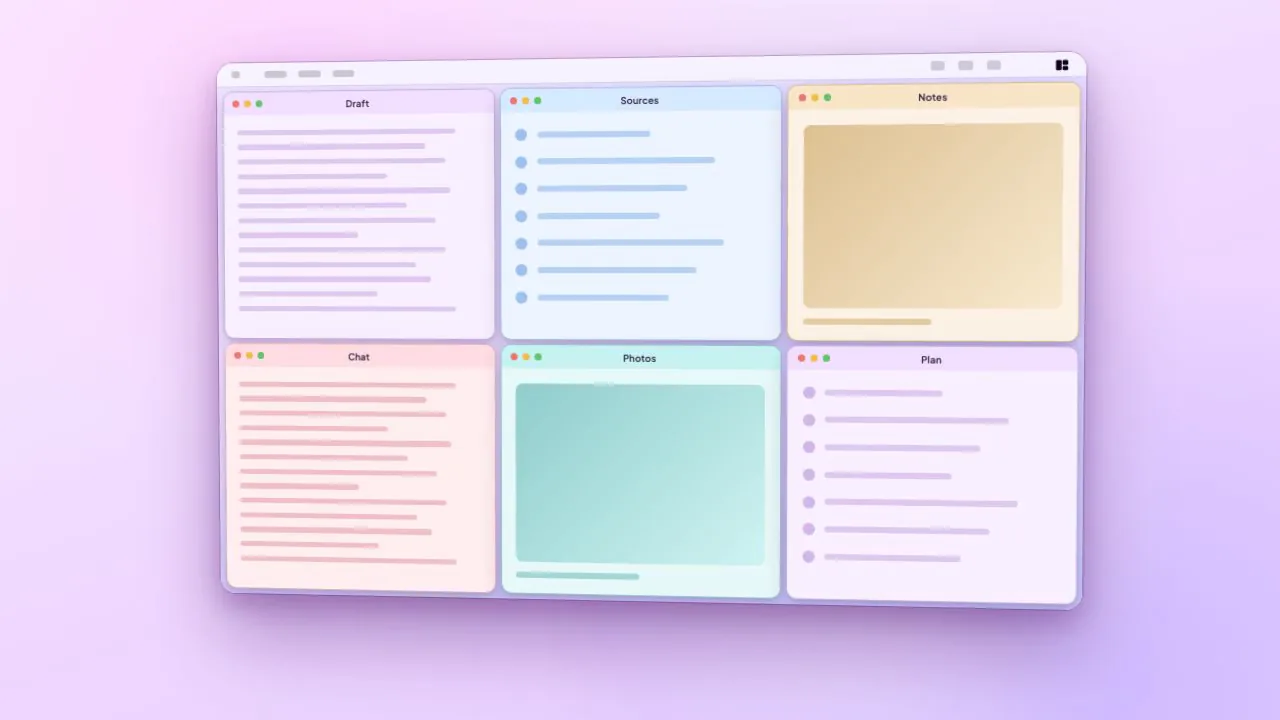
The desktop in this video is drawn, with invented windows, to show the idea. The two Settings windows are the app's own, rendered on sample data. Nothing here is a recording of a real screen.
Transcript and what is on screen
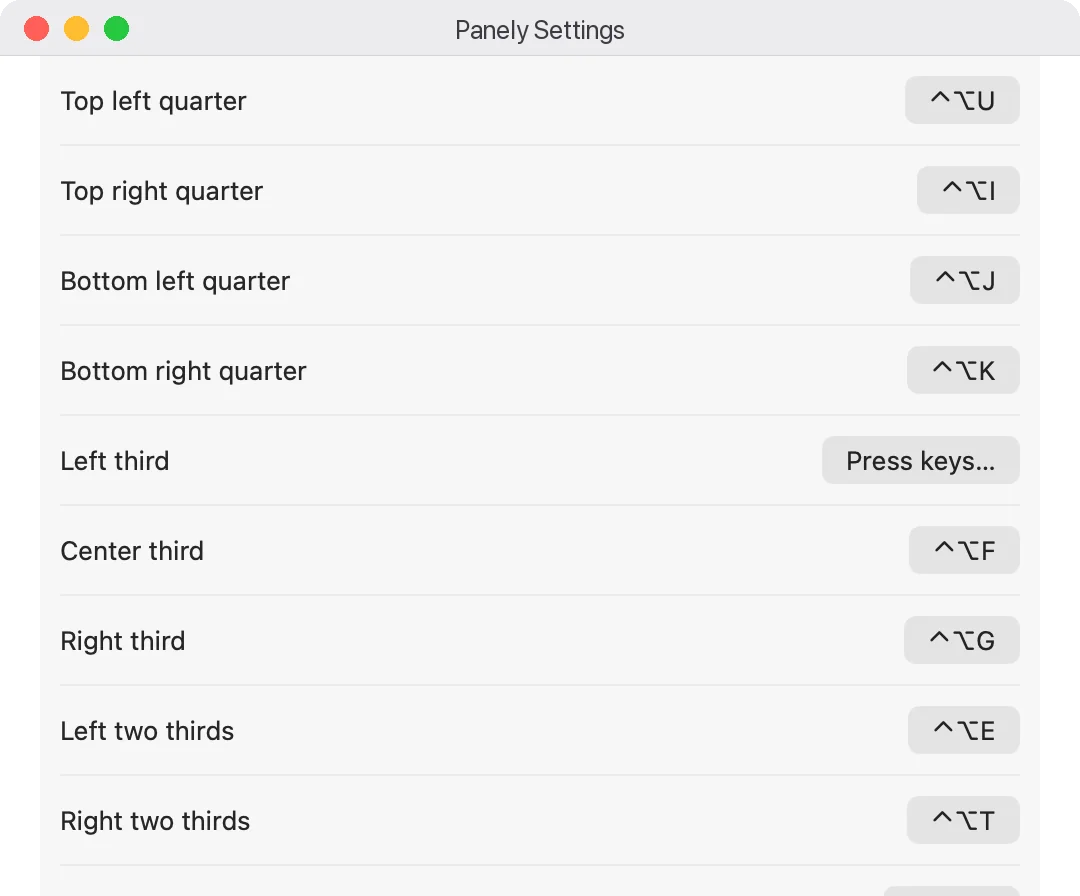
Panely snaps windows into place on your Mac. Press a shortcut, or drag a window to a screen edge or corner. Halves, thirds, quarters, sixths, or an area you draw yourself. Click any shortcut in Settings and press the keys you want. Choose apps it should never move. Nine ninety-nine once, with a seven day free trial.
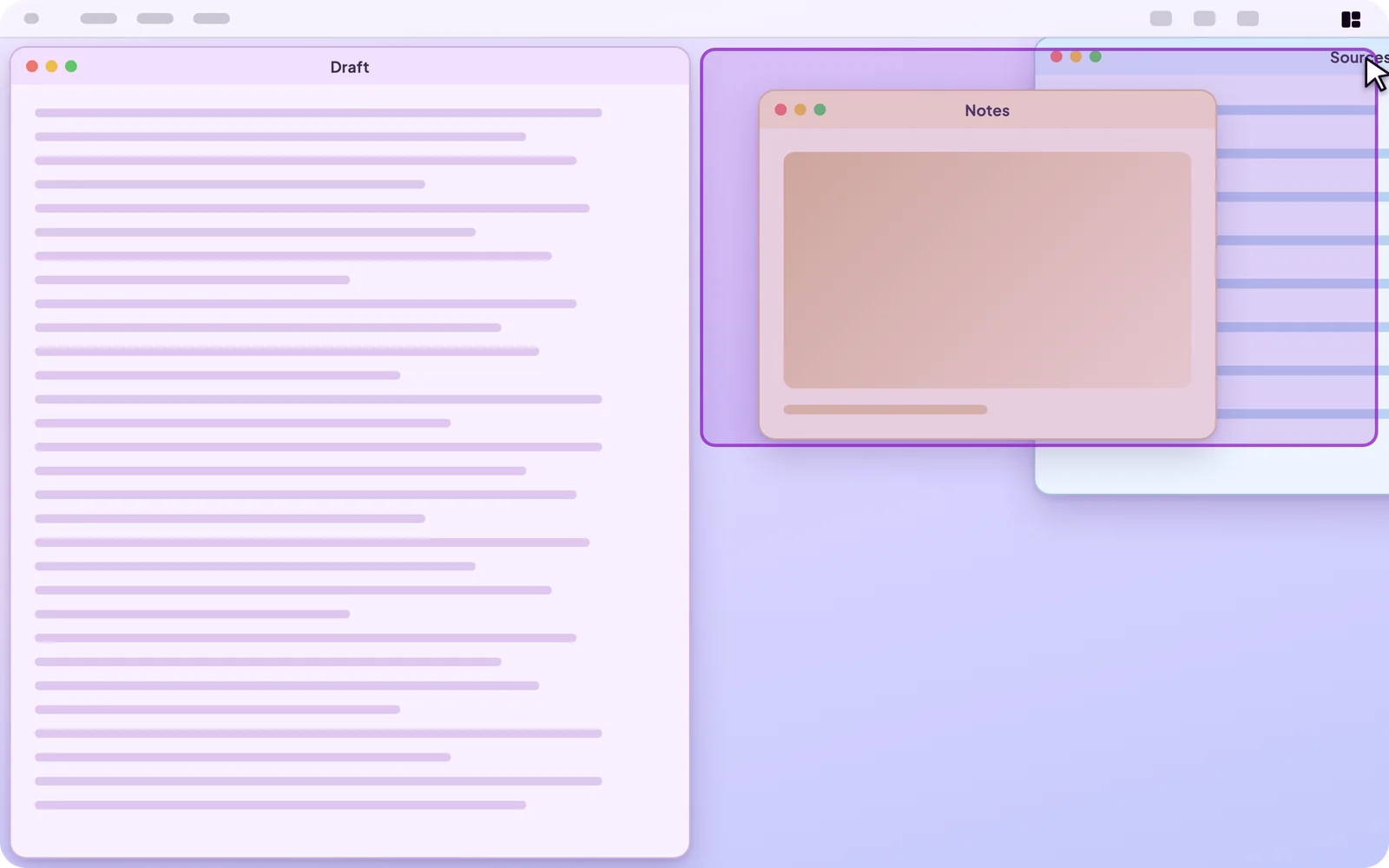
- A drawn desktop: a shortcut moves one window to the left half, then two windows are dragged to the right-hand corners, with a preview of each place before the window lands.
- The same windows tiled as halves, thirds, quarters and sixths.
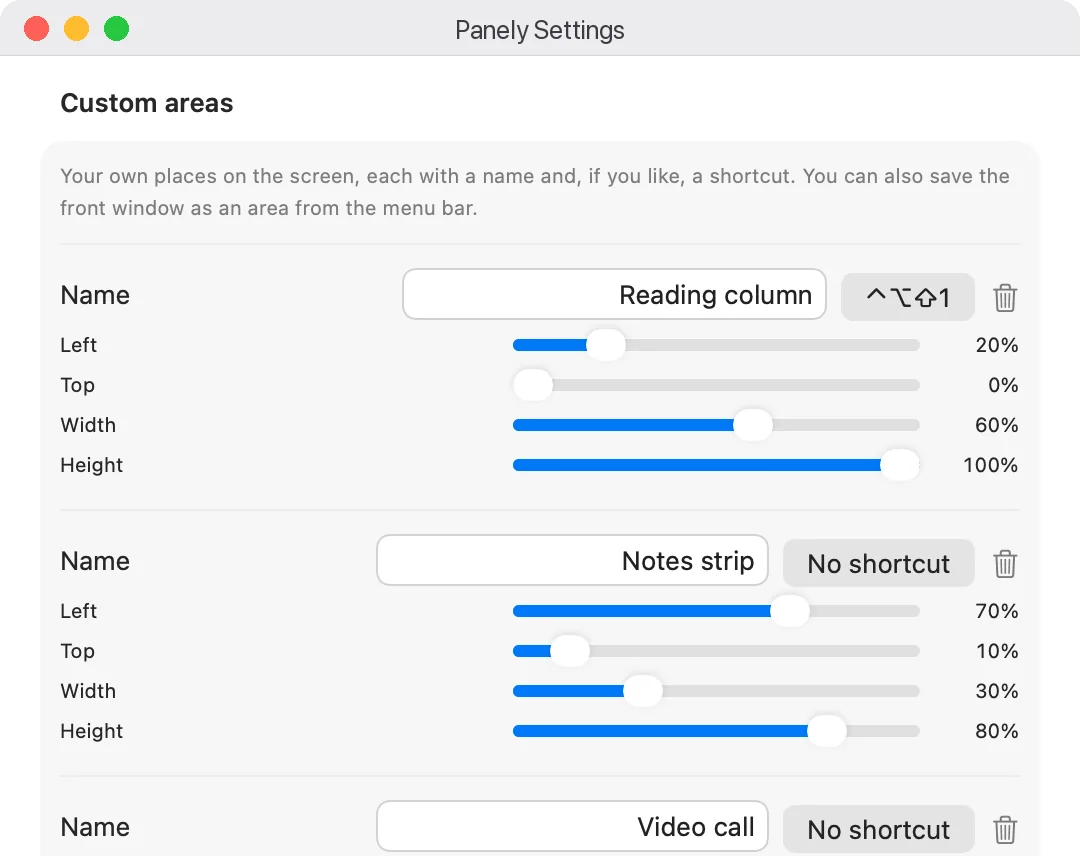
- Settings, Custom areas: a name, a shortcut, and left, top, width and height as percentages.
- Settings, Shortcuts: one shortcut button reading Press keys.
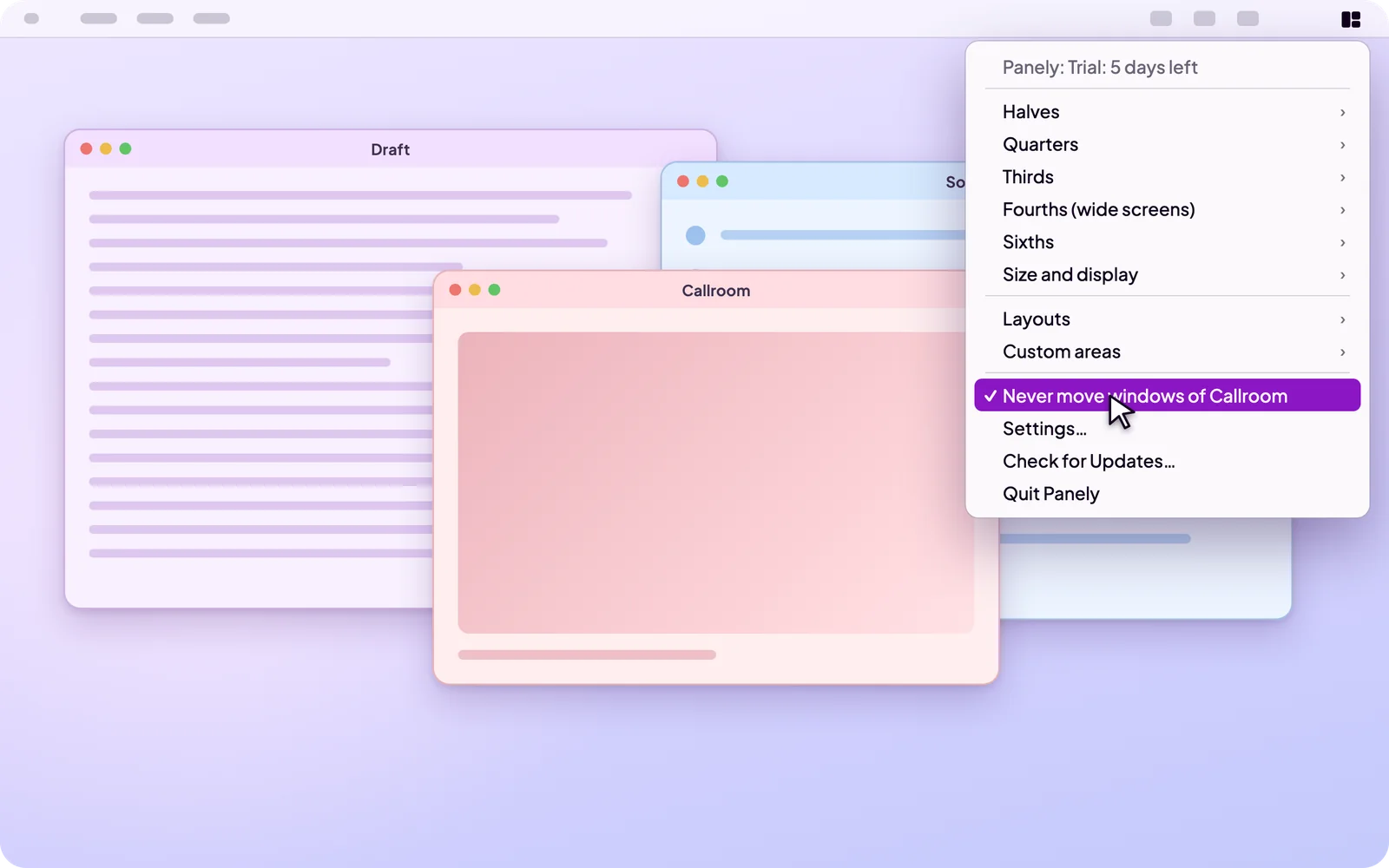
- The menu-bar drop-down with Never move windows of an app, switched on for an invented app, and two shortcuts that tile the other windows and leave that one where it is.
A closer look
Windows and desktops drawn for this page are marked as illustrations. The Settings windows are Panely's own screens, drawn offscreen with invented sample data.
Layouts, one after another
Drag, with a preview
Click a shortcut, press the keys
Areas of your own
Apps it never moves
How it works
You ask for a place
Press a shortcut, choose an action from the menu bar, or drag a window to a screen edge or corner. While you drag, a preview shows where the window will land.
Panely moves the window
It moves and resizes the front window through the macOS Accessibility permission. It reads each window's position, size and title, and nothing that is inside the window.
It remembers
Restore returns a window to its size before the first snap. Saved layouts bring back a whole arrangement, and Panely keeps one automatically for each set of displays you use.
What it does
| Snapping | Halves, quarters, thirds, two thirds, fourths, three fourths and sixths of the screen, plus maximize, full height, full width, almost maximize, center and a larger center, and make a window larger or smaller by a step. Each snap can leave a margin around the screen and a gap between windows, from 0 to 32 points. |
|---|---|
| Shortcuts | Most actions have a default shortcut, such as Control-Option with an arrow key. In Settings, click any shortcut and press the keys you want, including for the sixths, which have none to start with. Panely refuses combinations that macOS keeps for itself or that another action already uses, and warns you when another app holds one. Any shortcut can be reset or turned off. Panely uses macOS's own system for global shortcuts, so it does not need the Input Monitoring permission and does not see other keys you press. |
| Dragging | Drag a window to the left or right edge for a half, to the top edge to maximize, to the bottom edge for a bottom half, or to a corner for a quarter. A translucent preview shows the result before you let go. |
| Repeat to resize | Press a left or right half shortcut again and the window steps to two thirds, then one third, then back to half. This can be turned off. |
| Displays | Move a window to the next or previous display and it keeps its proportions. Panely orders displays left to right. |
| Restore | Return a window to the size and place it had before its first snap. |
| Custom areas | Define your own places, up to twelve, such as a reading column in the middle 60% of the screen. Set the left edge, top, width and height as percentages in Settings, or place a window where you want it and choose Save this window as an area from the menu bar. Each area can have its own shortcut and appears in the menu bar. Areas are fractions of the screen, so they fit any display. |
| Ignored apps | Choose apps whose windows are never moved, by shortcut or by dragging, such as a game or a video call. Open the menu bar icon while that app is in front and choose Never move windows of it. |
| Layouts | Save the arrangement of your open windows under a name, and apply it from the menu bar. Windows are matched by app, and by title when an app has several windows. Apps with no open window are listed instead of guessed at. |
| Describe a layout | Type something like Xcode left, Simulator right, Terminal bottom. Panely reads the words with fixed rules on your Mac, asks you when an app name matches more than one app, and tells you which parts it could not read. |
| Monitors | Panely keeps an automatic layout for each arrangement of displays. When you plug a display back in, it waits a few seconds for macOS to settle and then puts windows where they were. |
| Windows it can reach | Panely works on the windows you can see in the current Space. macOS gives apps no way to move windows between Spaces, so it does not. |
Privacy
Works offline
Panely needs no network connection for any of its features. There are no accounts. The only network use is its check for a new version, which carries the app's name and version.
Positions, sizes and titles
To move a window, Panely reads where it is, how big it is and its title, so a saved layout can tell two windows of one app apart. It does not read what is inside a window.
No keystroke access
Shortcuts use macOS's own global shortcut system. Panely does not need Input Monitoring and cannot see which other keys you press.
Details are on the privacy page.
The Accessibility permission
When Panely first opens, macOS asks you to allow it under System Settings, Privacy & Security, Accessibility. That is the permission an app needs to move other apps' windows. Without it Panely can still be opened, but it cannot move anything. You can switch it off again in the same place.
What it is not
| Automatic tiling | It does not rearrange windows by itself. It acts when you ask: a shortcut, the menu, a drag, or a layout you apply. |
|---|---|
| An AI app | It does not use a language model. Describing a layout works from a small set of fixed rules, and says when it cannot read a phrase. |
| A window recorder | It reads window positions, sizes and titles. It does not read, store or send what is inside a window. Saved layouts keep window titles on your Mac, and a title can contain a document name or a web address. |
| Cross-platform | Mac only. There is no Windows, iPhone or iPad version. |
Frequently asked questions
What does it need to run?
macOS already snaps windows when I drag them. Will they fight?
Does it use AI?
Can it see what is in my windows?
Will it put windows back when I reconnect a monitor?
Does it work with Spaces and full-screen apps?
Can I change the shortcuts?
Does one license work on more than one Mac?
Are updates included?
What happens when the trial ends?
Can I get a refund?
How do I get help?
Try it for a week.
Seven days of the complete app, no account and nothing to enter. Then decide whether to keep it.
macOS 14 or later