
Keyfeel
Keyfeel plays real recorded keyboard-switch sounds when you press a key on your Mac, and adds mouse-click sounds, scroll ticks and optional trackpad haptics. It runs in the menu bar and works offline.
The trial is the complete app for seven days from the first time you open it, with no account and nothing to enter. Buying is a single $9.99 payment, for life, with every update included. You get a license key by email and on the page after you pay; paste it into the same app and it stays unlocked, with no second download. Not useful? Email ben@purplelink.llc within 14 days of purchase (terms). Version 1.1.0, released October 7, 2026. 7 MB disk image. Needs macOS 13 or later, Apple silicon and Intel, and the Input Monitoring permission.
Comparing options? See the keyboard sound apps for Mac compared.
Also in the Mac Suite: ModernTex, Outbound Veil, Legroom, Keyfeel and Vitae Plus for life, $54.99 once.
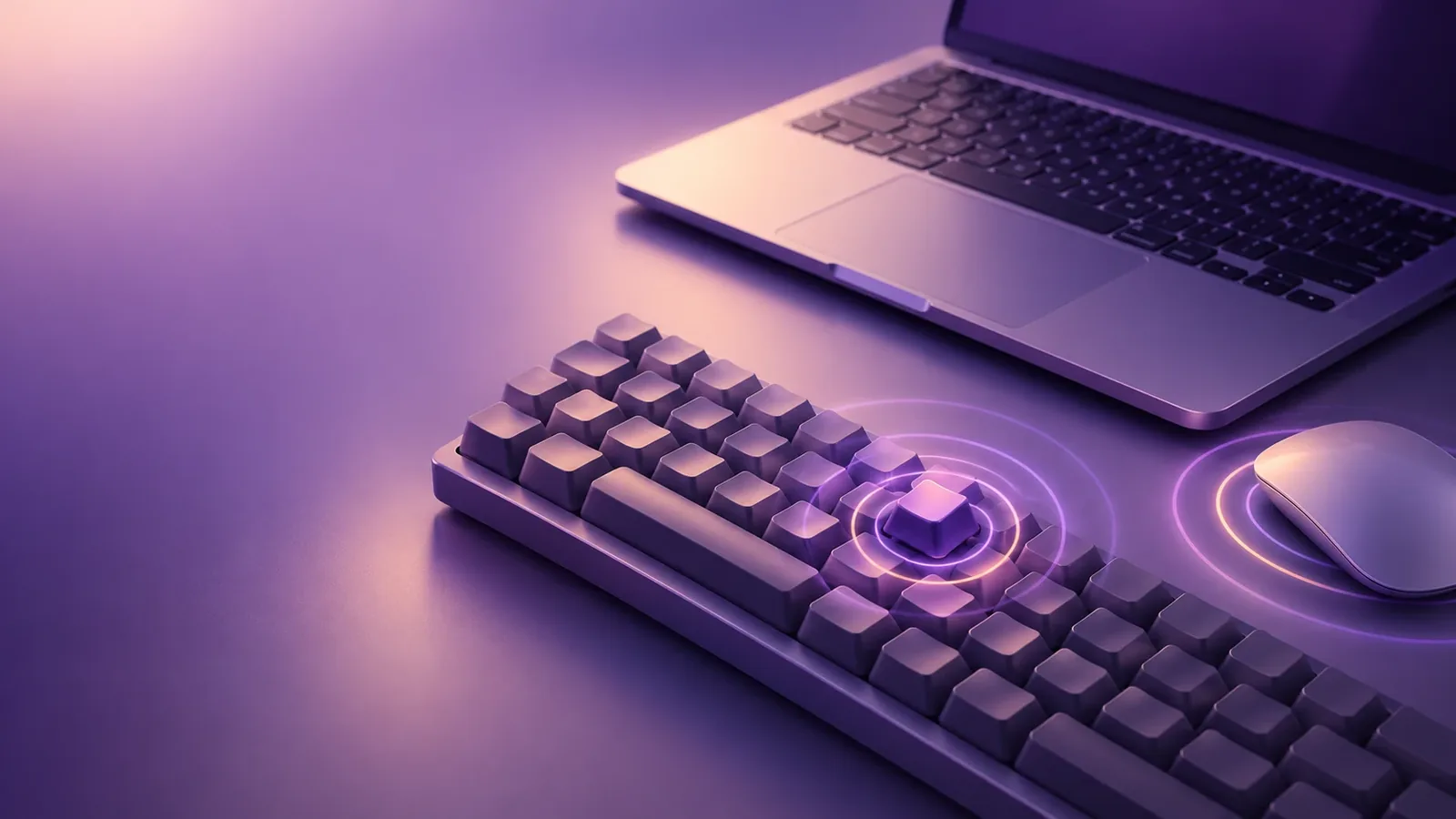
How it works
It hears that a key was pressed
Through the macOS Input Monitoring permission, Keyfeel is told when a key goes down and comes back up. It uses the key code, which says which key it was, and never the characters you typed.
It plays a recording of a real switch
Each press plays a recording from the sound profile you chose, and picks a different recording each time, so a repeated key does not sound like one sample on a loop.
It stays out of the way
Keyfeel lives in the menu bar. You can silence it in the apps you choose, and it goes quiet by itself while the microphone is in use.
What it does
| Sound profiles | Recorded Tactile, Cherry MX Brown and Dome profiles, a Fun set (cat, dog, duck, boing, bubble pop, water drops), a Calm set of soft sounds for all-day use (soft wood, glass and ceramic, marble, kalimba, chimes, clickers, bubble wrap), and synthesized extras. Every recording is licensed for use (CC0), with credits listed in the app. |
|---|---|
| Your own sounds | Import a Mechvibes sound pack (its folder, its zip or its config.json), including packs in .ogg, and each key keeps the sound the pack gave it. Or choose one short sound file of your own. |
| Keys | Press and release sounds, with a different recording on each press. Each key has its own pitch, and the sound moves from left to right in stereo across the keyboard. The space bar and Return have sounds of their own, and you can set the level of the space bar and modifier keys separately. Fast typing gets gently quieter so it does not wear on you. |
| Mouse | Press and release sounds for mouse clicks, and a ripple on screen where you click. |
| Scrolling | Scroll ticks that follow how fast you scroll, in nine styles, including recorded brush, pencil on paper, salt and rice. When a hard flick keeps the page gliding, the ticks keep going and slow down with it. |
| Shortcuts | Each of eleven shortcuts, such as copy, paste, undo and save, can have its own sound. Copy and cut play a different, softer sound if nothing was copied, so the sound tells you the command took. |
| Trackpad | Optional haptic feedback on scroll and click. Keyfeel produces it only while a finger is on the trackpad. |
| Quiet | Silence in the apps you choose, automatic silence while the microphone or a camera is in use, and an option to stay silent in full-screen apps. You can also keep sounds off the built-in speakers and play them only on headphones or external audio. |
| Control | Keyfeel runs from the menu bar and is controlled there. Keyboard shortcuts turn it on and off and switch sounds, a keyfeel:// link works from Shortcuts and scripts, and you can hide the menu bar icon. |
How it feels
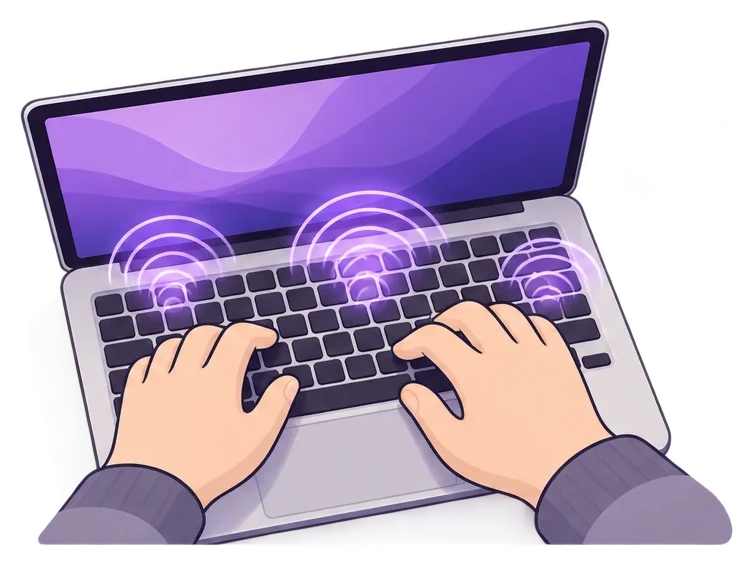
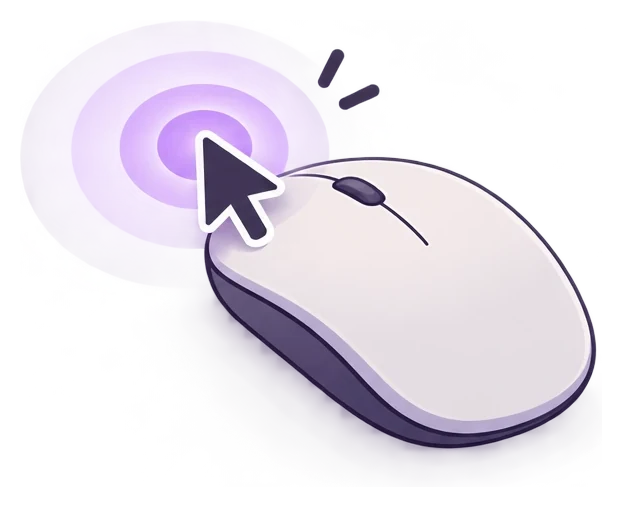
Four parts of the app, drawn rather than photographed. These are illustrations, not screenshots of the app.
Typing
Every key press plays a recording of a real switch, with its own pitch and a place in the stereo field. Releasing the key can make a sound too.
Clicking
Mouse clicks have press and release sounds, and a ripple spreads on screen from the point you clicked. Scrolling ticks along at the speed you scroll.
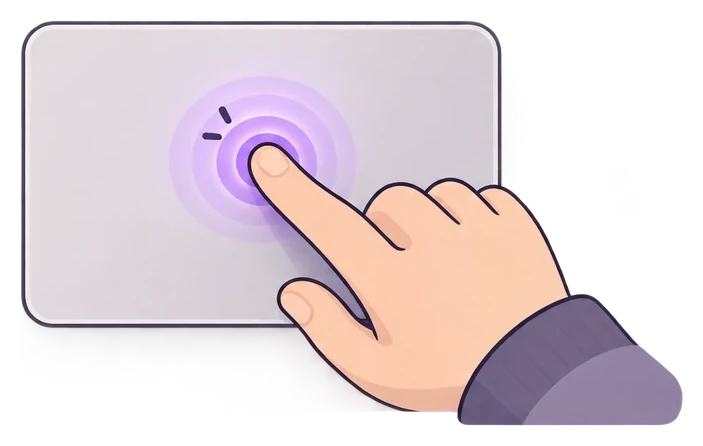
Trackpad
Optional haptic feedback on scroll and click. Keyfeel produces it only while a finger is on the trackpad.
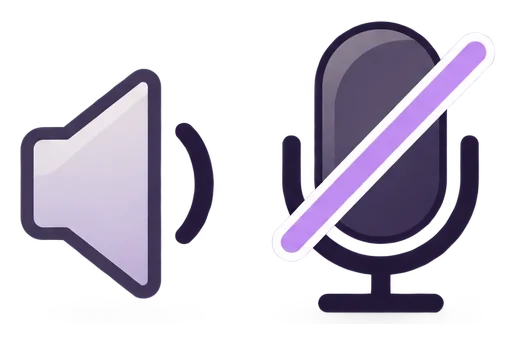
Quiet when it should be
Choose apps where Keyfeel stays silent. It also goes quiet by itself while the microphone is in use, so key sounds are not played into a call or a recording.
Privacy
Works offline
Keyfeel makes its sounds and haptics on your Mac and needs no network connection. There are no accounts. The only network use is its check for a new version, which carries the app's name and version and nothing you type.
Key codes, never characters
To choose a sound, Keyfeel needs to know which key was pressed. It reads the key code, not the character the key produced. A key code is still a record of which keys you press, which is why macOS puts it behind a permission you grant.
Password fields stay silent
When a password field has focus, macOS stops delivering keystrokes to apps like Keyfeel. It hears nothing while you type a password.
Details are on the privacy page.
The Input Monitoring permission
The first time you open Keyfeel, macOS asks you to allow it under System Settings, Privacy & Security, Input Monitoring. That is the permission an app needs to be told about key presses made in other apps. Without it Keyfeel cannot hear your keyboard and stays silent. You can switch it off again in the same place at any time.
What it is not
| A keylogger | It works from key codes, not the characters you type, and it does not send your typing anywhere. |
|---|---|
| A keyboard remapper | It listens. It does not change what a key types and does not block any key. |
| New hardware | Sounds play through your Mac's audio output. Haptic feedback is felt only on the trackpad, and only while a finger is on it. Nothing happens inside your keyboard or mouse. |
| Cross-platform | Mac only. There is no Windows, iPhone or iPad version. |
Frequently asked questions
What does it need to run?
Does it read what I type?
Does it hear me type passwords?
Can I make it quiet in some apps, or on calls?
Why do the haptics need a finger on the trackpad?
Is there a delay between pressing a key and hearing it?
Can I use sound packs from other apps?
Are updates included?
What happens when the trial ends?
Can I get a refund?
How do I get help?
Try it for a week.
Seven days of the complete app, no account and nothing to enter. Then decide whether to keep it.
macOS 13 or later · Apple silicon and Intel