
Summonly
Summonly finds files, apps and clipboard history from one box. Press Option-Space, type a few letters and press Return. It keeps a small index of your folders on your Mac, answers sums and unit conversions, and runs web searches from a keyword.
Version 1.0.0, released October 12, 2026. 5 MB disk image.
The trial is the complete app for seven days from the first time you open it, with no account and nothing to enter. Buying is a single $9.99 payment, for life, with every update included. You get a license key by email and on the page after you pay.
Also in the Mac Suite, $59.99 once.
Comparing launchers? Read Best Alfred alternatives for Mac (2026), which says plainly where Alfred and Raycast are stronger than Summonly. If Spotlight is missing files, How to find files on a Mac when Spotlight cannot covers the usual causes and how to check each one.
Watch it work
A search, a question and clipboard history
Twenty-nine seconds with narration and captions. Every screen is the app's own window drawn on invented sample files, not a recording of a real Mac.
What the video says and shows
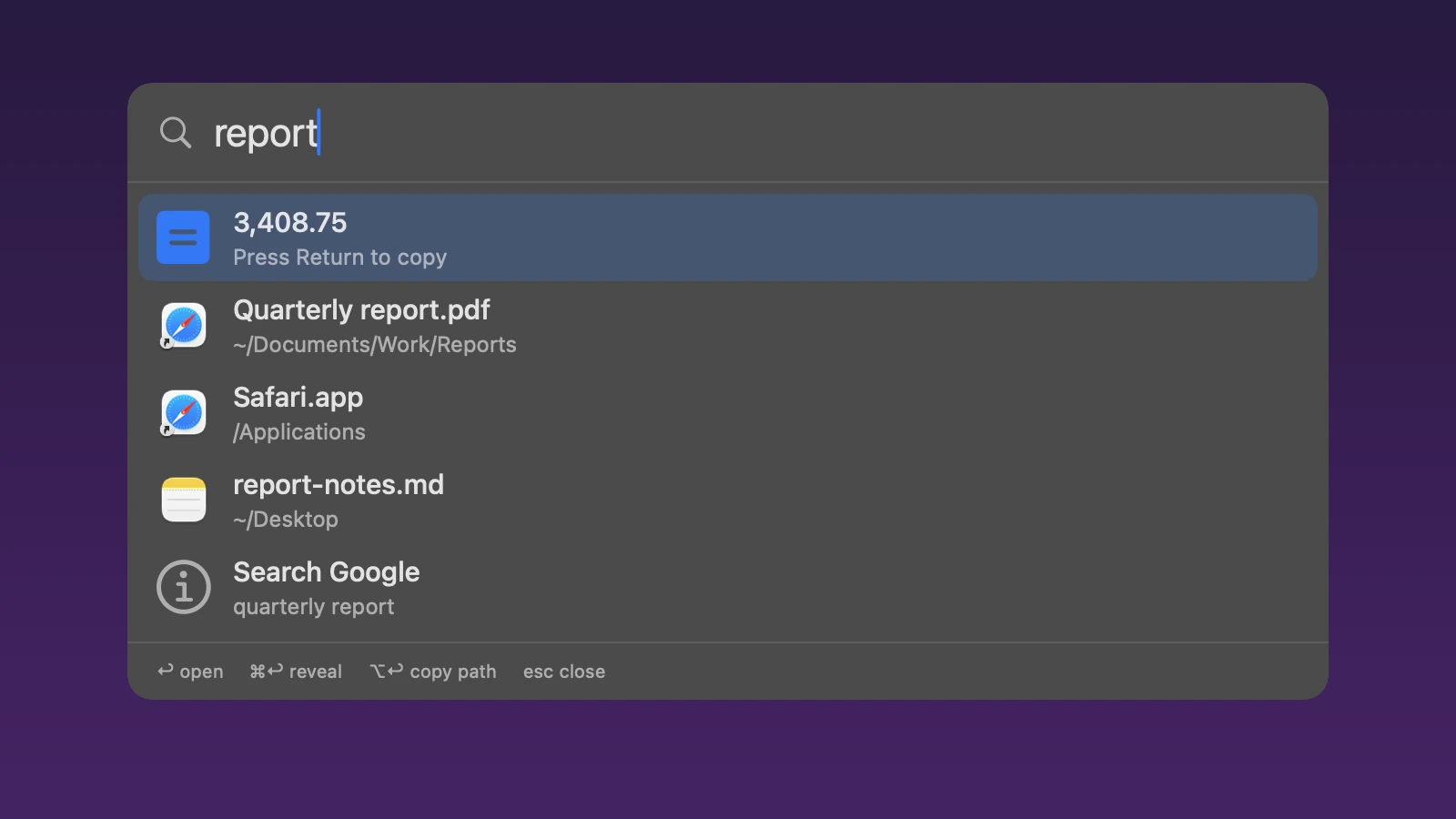
Press Option-Space, type a few letters, and press Return. The search box lists folders and files that match, then rows to search Google, Claude or ChatGPT.
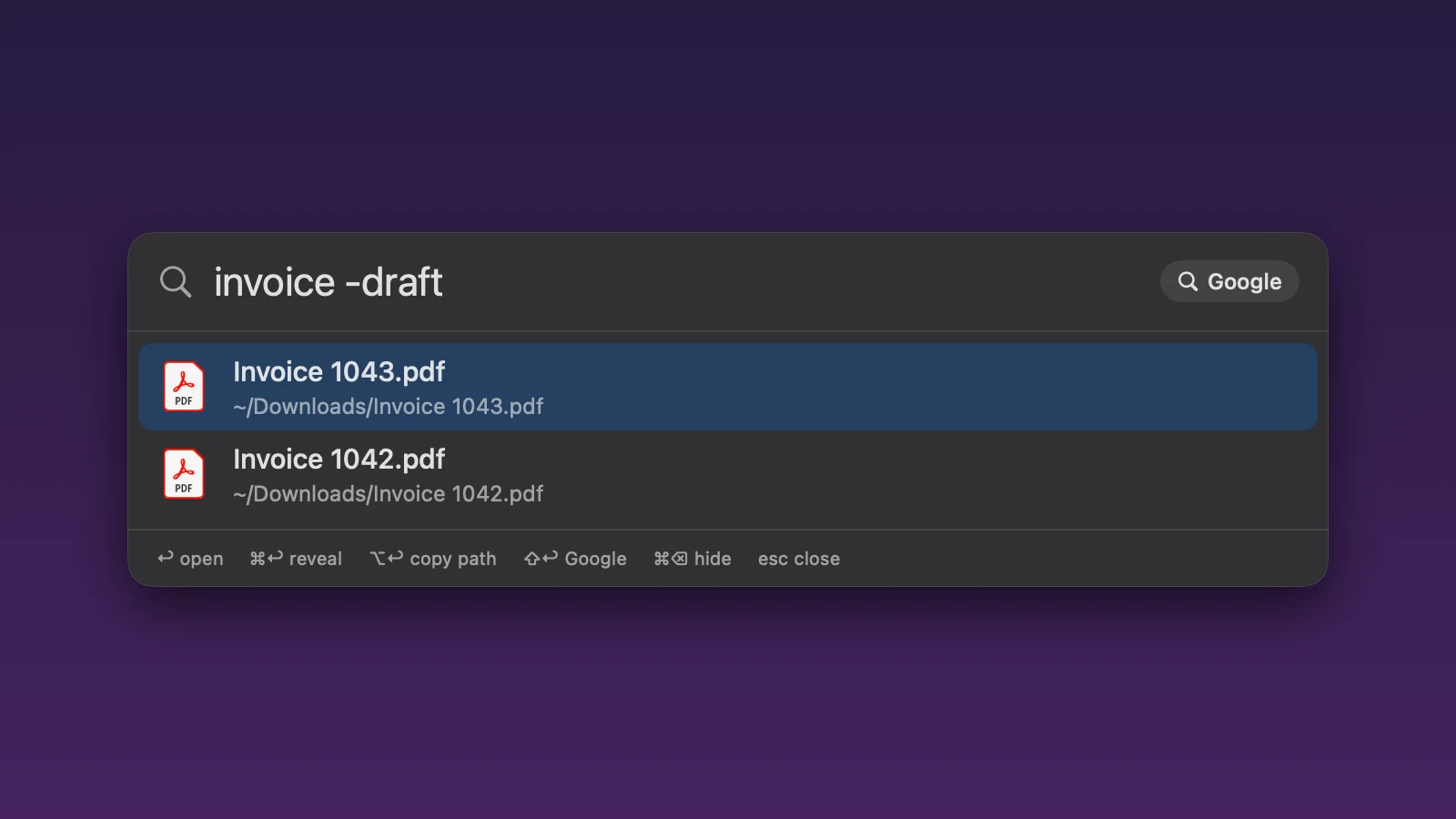
Ask a question, and it shows the passage and the page. It matches the words you use. The answer is the file, with the passage and, for a PDF, the page number.
Clipboard history keeps what you copy. It is off until you turn it on, and it skips password managers. The first-run window shows the choice, left unticked.
Nine ninety-nine, once, with a seven day free trial.
How it works
It indexes in the background
Summonly reads file names, and the start of text files, PDFs and Office documents, in the folders you choose, and keeps a small searchable index on your Mac. If you turn on question search it also reads whole documents. macOS tells it when files change, so the index stays current.
You open it and type
Press Option-Space. Results appear as you type: a quick answer first if the text is a sum, a unit conversion or one of the quick tools, then files and apps, ranked by how well the name matches and how often you open them.
You act on a result
Return opens it. Command-Return shows it in Finder. Option-Return copies its path. A calculation, snippet or clipboard item is copied.
A closer look
Each picture is the app's own interface, drawn on invented sample files in a throwaway home folder. None of it is from a real Mac.
Ask a question
Optional, and off until you turn it on. Summonly shows the file and the passage, with the page number for a PDF. It finds the words you use, so a question worded very differently from the document is found less often.
Leave words out
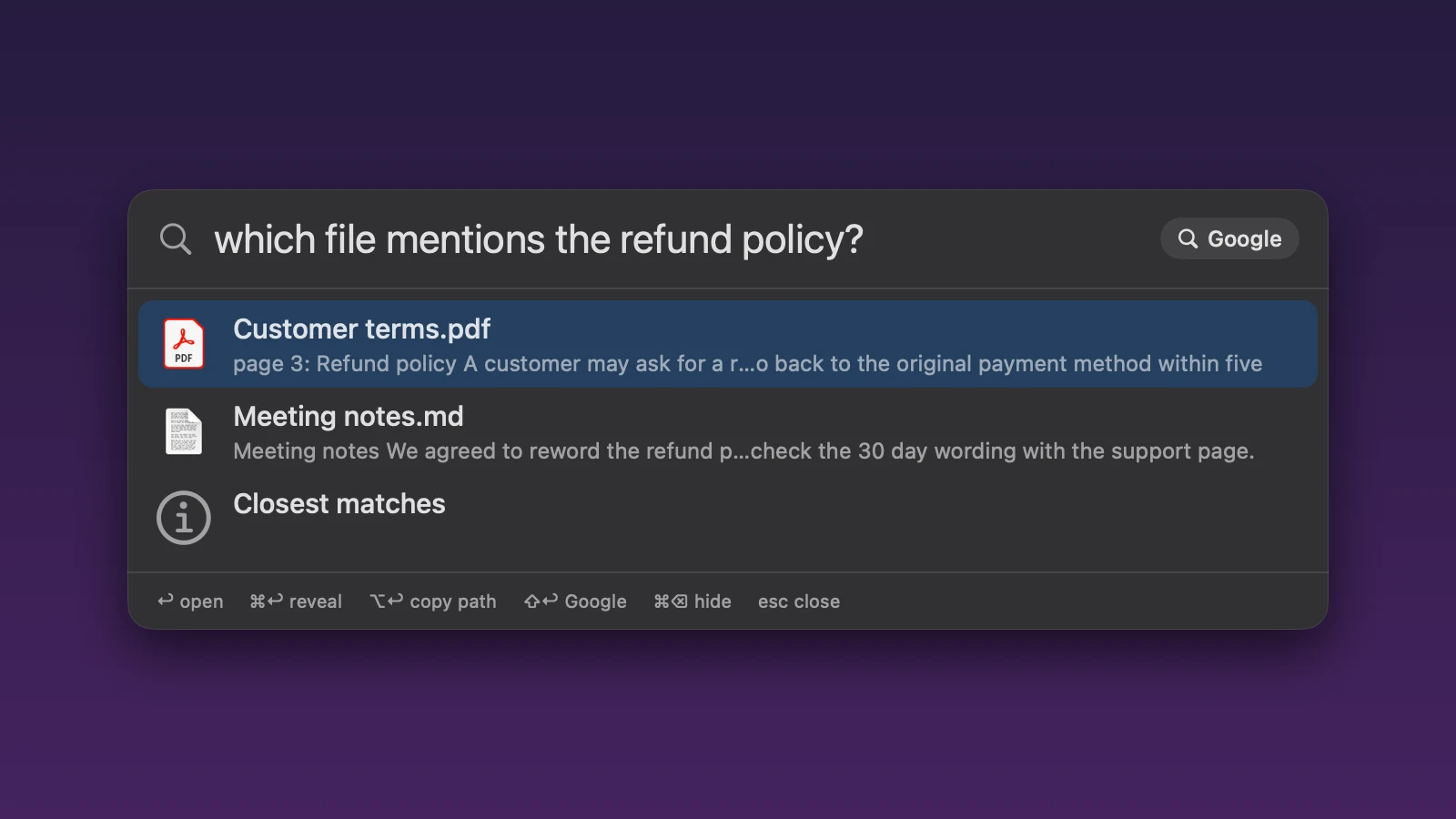
A minus sign before a word leaves out files that contain it. Here invoice -draft lists two invoices and not the draft.
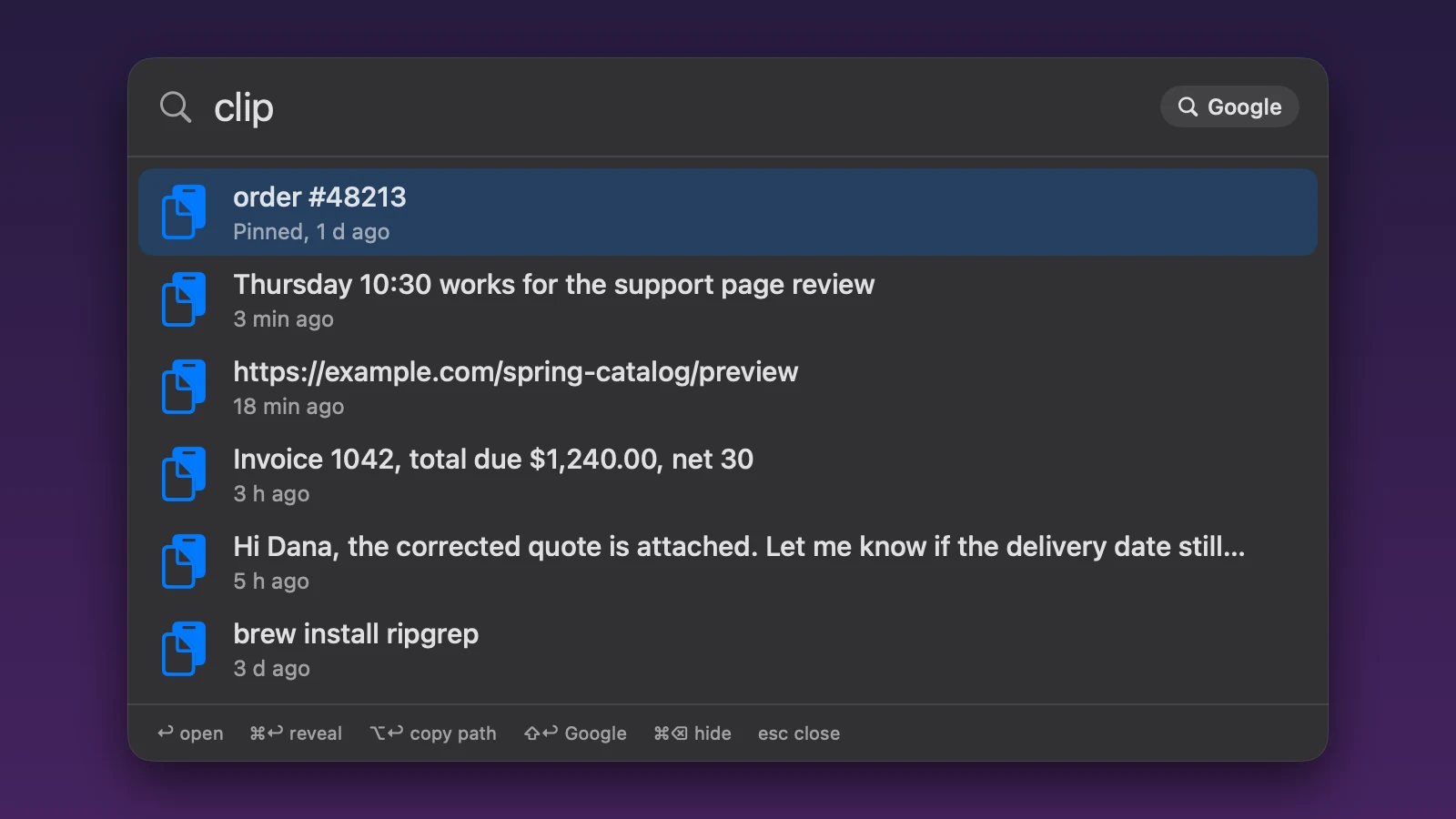
Clipboard history
Press Option-Shift-V, or type clip. A pinned item comes first, then recent ones with how long ago you copied them. History is off until you turn it on.
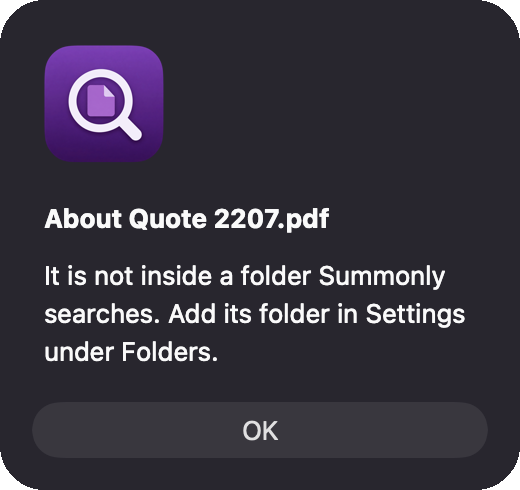
Why isn't it found?
In Settings, choose a file and Summonly says which rule applies. This file is outside the folders it searches.
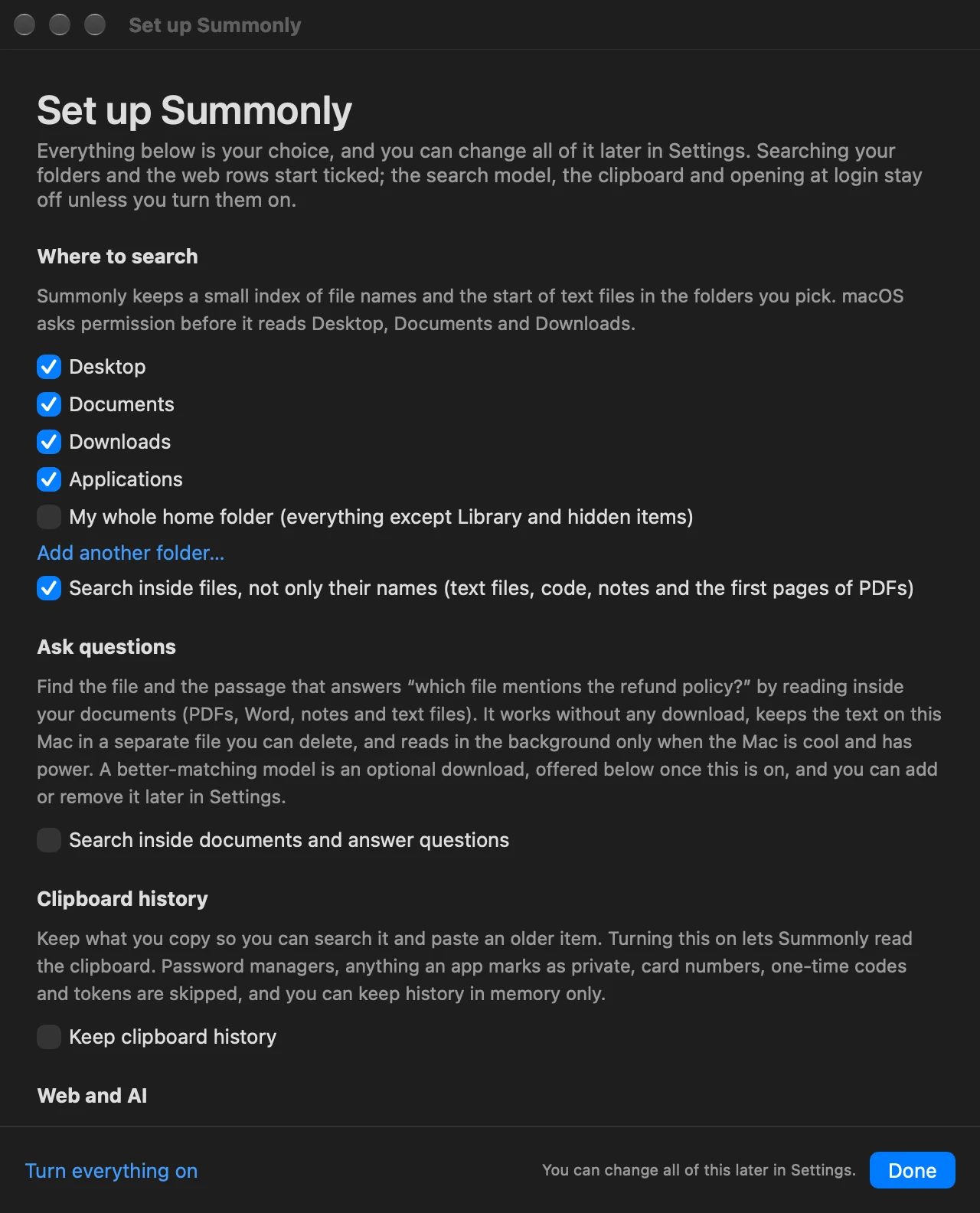
First-run window
Choose your folders and every other option here. Each choice is also in Settings.
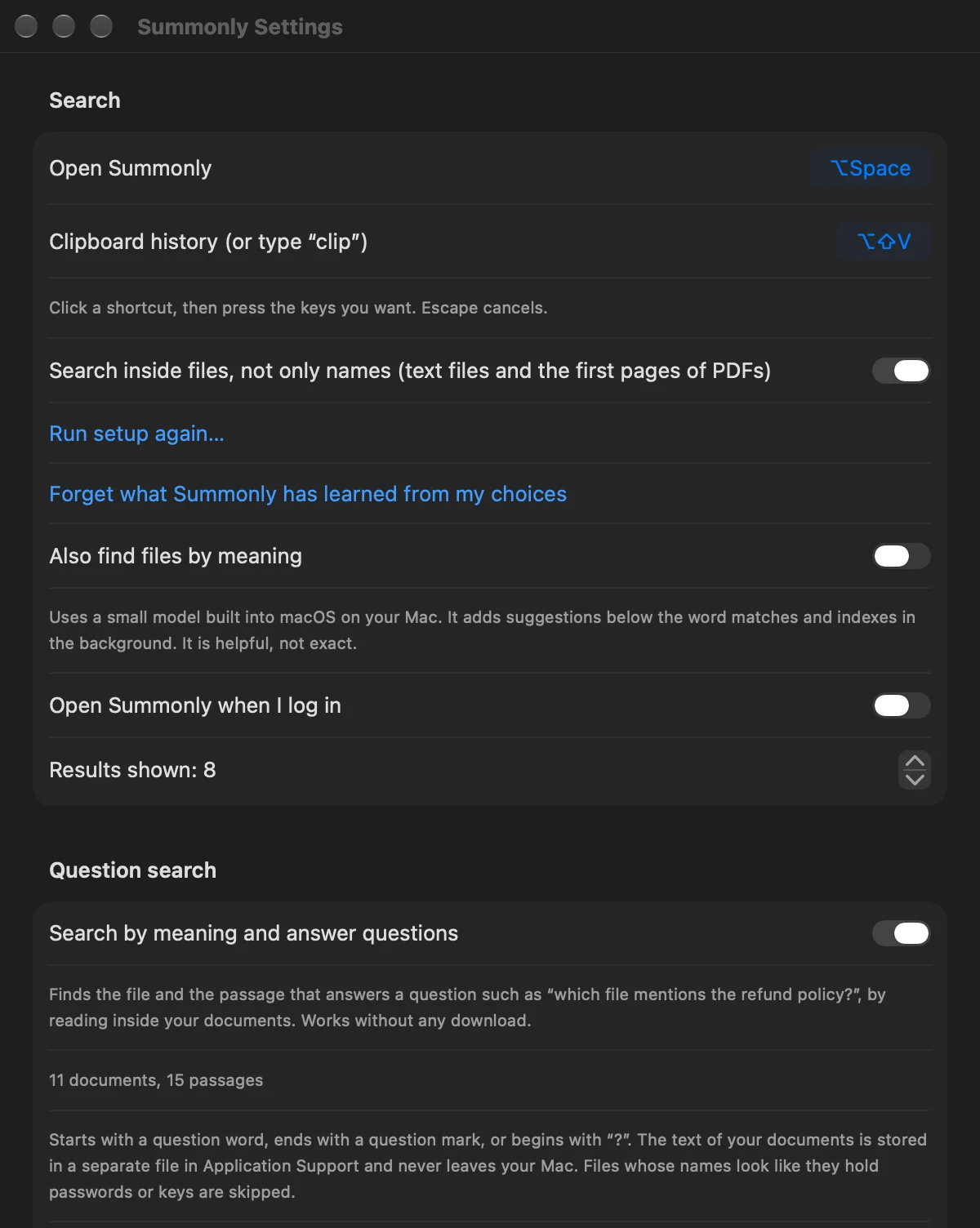
Settings
Shortcuts, question search, folders, clipboard rules, snippets, web searches and the license.
What it does
| Finds | File and folder names, apps, and the start of text, code and Markdown files, RTF files and the first pages of PDFs. The text of Word, Excel, PowerPoint and OpenDocument files is read too. Pages and Keynote files are found by name only. |
|---|---|
| Abbreviations | Type vsc for Visual Studio Code, or te for TextEdit. Summonly matches the first letters of an app's words. |
| Filters | kind:pdf, ext:docx, in:Documents, modified:today, modified:week, after:2026-01-01 and before:2026-03-01, name:budget (names only) and size:>5mb or size:<200kb. Put words in quotes to match them side by side, put a minus sign before a word to leave out files that contain it (invoice -draft), and use OR between words (report OR invoice). A search written this precisely is not loosened or spell-corrected. Plain words work too: invoice yesterday, notes last week, tax pdf. |
| Typos and loose words | Misspell a word and Summonly looks for the nearest word in your own files, and tells you what it searched for. If one word of a long search matches nothing, files that match the rest still appear, and a question such as how do buyers get their license key finds files that contain those words. |
| Ranking | A name that matches comes first, then the file you open often and recently, then newer files. Opening a file teaches it, and you can clear what it has learned. |
| Find by meaning | Optional, and off until you turn it on in Settings. It uses a small English-language model built into macOS to suggest documents on the same subject, below the word matches. It runs on your Mac and helps rather than guarantees: related documents are suggested, not proven. |
| Ask questions | Optional, and off until you turn it on in the first-run window or in Settings. Summonly then reads inside your documents (PDFs page by page, Word, PowerPoint, Excel, notes and text files) in the background, newest first, and answers a question such as which file mentions the refund policy with the file and the passage, with the page number for a PDF. Start with a question word, end with a question mark, or begin with ? to ask. It finds the words you use: a question worded very differently from the document is found less often, and when nothing matches well it says so and shows the ordinary results. The text it reads is kept in a separate file in Summonly's folder in Application Support, which you can delete in Settings. It reads only while the Mac has power and is not hot, stops at a size limit, and skips files whose names suggest secrets. |
| Why isn't it found? | In Settings, choose a file and Summonly says whether it is indexed and, if not, which rule applies: outside your folders, hidden, inside a build folder, left out by you, in iCloud and not downloaded, or too large to read inside. Right-click a result for Why this result, Hide this result, or Leave this folder out. Command-Delete hides the selected result, and Settings lists what you hid so you can show it again. |
| Stays current | A result for a file you have deleted is not shown, and the file is dropped from the index. Files on a drive that is not connected are hidden and come back when it is. Settings has Check index, which tests the index and tells you plainly if something is wrong, and indexing slows down when the Mac is hot or the battery is low. |
| Quick answers | Sums, percentages (20% of 150, 150 + 20%), powers, square roots and other functions, and conversions between units of length, weight, volume, time, data, speed and temperature, such as 5 km in miles. |
| Quick tools | Type uuid, base64 hello, base64 decode, urlencode, sha256 text, md5 text, #ff8800 or rgb(255, 136, 0), epoch, epoch 1700000000, slug Some Title, snake, kebab, camel, upper, lower, title, count some words, or password 24. The answer is one line and Return copies it. A generated password is copied marked as private, so other clipboard tools skip it, and it is cleared from the clipboard after a minute. Nothing is sent anywhere. |
| System | Type sleep, lock (turns the display off), screen saver, quit safari, force quit notes, or wifi, bluetooth, displays and sound to open that System Settings pane. These need no permission beyond the one Summonly already has. Restart and shut down are not included. Force quit asks before it acts. A switch in Settings opens Summonly when you log in. |
| Web search | Type a keyword and some words: g for Google, ddg for DuckDuckGo, w for Wikipedia, maps for Apple Maps, yt for YouTube, gh for GitHub, scholar for Google Scholar. |
| Google, always | Whatever you type, a small Google button appears beside the search box, and Shift-Return does the same from the keyboard. It opens the search in your default browser, so it follows your own choice of browser. The button says Google in words; it does not use Google's logo. Nothing is sent until you press it. |
| Ask an assistant | claude, gpt and ppl open Claude, ChatGPT or Perplexity in your browser with your words already typed in, for example claude why is the sky blue. Type ask and a question to get one row for each assistant. Any text you type also gets three last rows, Search Google, Ask Claude and Ask ChatGPT, unless the line is a calculation or a command that already has its own answer. In Settings you choose which of them appear as those last rows, and you can add any other site that takes a search address with {query} in it. Pressing Return opens the page in your browser; nothing is sent before that, the words go to that site and not through Summonly, and you use your own login there. Summonly does not talk to any assistant itself. |
| Clipboard history | Option-Shift-V, or type clip. It does not record anything copied from a password manager or marked private by the app that copied it, or text that looks like a card number, a one-time code, an access token, a long key, or a password with upper and lower case letters, a digit and a symbol. You choose how many items to keep and for how many days, and can keep history in memory only. Pin items you want to keep, and clear it at any time. |
| Snippets | Save text under a keyword. {date}, {time} and {clipboard} are filled in when you use it. Summonly copies the snippet; you paste it where you want it. |
| Folders | Desktop, Documents, Downloads and your Applications folders to start, or your whole home folder if you choose it (Library and the Trash are always left out). The first-run window lets you choose these and every other option. Add or remove folders in Settings, and leave any folder out. If macOS refuses a folder, Summonly says so in its status line. Changes apply at once, without reopening Summonly. Files whose names suggest secrets, such as .env files, key files and names with password or secret in them, are found by name only: nothing inside them is read. Hidden files and developer folders such as node_modules and .git are skipped. |
Privacy
Works offline
Summonly needs no network connection for any of its features except opening a web search in your browser and its check for a new version, which carries the app's name and version.
The index stays on your Mac
The index holds file names, paths and the start of text files, in Summonly's own folder in Application Support. You can rebuild it or delete it, and you choose which folders it covers.
Clipboard history is off until you turn it on, and skips secrets
Summonly does not read the clipboard at all until you choose to. It then skips password managers and anything an app marks as private, skips text that looks like a card number, token or long key, and can be kept in memory only. Where it is saved, the file is readable only by you.
Details are on the privacy page.
Folder access
The first time Summonly reads your Desktop, Documents or Downloads folder, macOS asks whether to allow it. Allow the folders you want searched. Summonly does not need Full Disk Access. It also reads the clipboard to keep history, and recent versions of macOS may ask you to allow that. If you add a folder that macOS protects, it will ask for that one too. The first index of a large folder can take a few minutes and runs in the background at low priority.
What it is not
| A replacement for all of Spotlight | It searches the folders you choose. It does not search Mail, Messages, Contacts or Calendar, or the web. |
|---|---|
| A workflow tool | There are no workflows, scripts or extensions in this version. It is for finding, opening, copying and calculating. |
| A chat assistant | It does not answer questions in sentences. The meaning search only suggests related documents. |
| Synced | Everything stays on your Mac. There is no account and no sync. |
| Cross-platform | Mac only. There is no Windows, iPhone or iPad version. |
Frequently asked questions
What does it need to run?
How is it different from Spotlight?
Does it send my files or searches anywhere?
What does Find by meaning do?
Does it record passwords I copy?
Can I change the shortcut?
Can it search inside Word documents?
Does one license work on more than one Mac?
Are updates included?
What happens when the trial ends?
Can I get a refund?
How do I get help?
Try it for a week.
Seven days of the complete app, no account and nothing to enter. Then decide whether to keep it.
macOS 14 or later