
Née
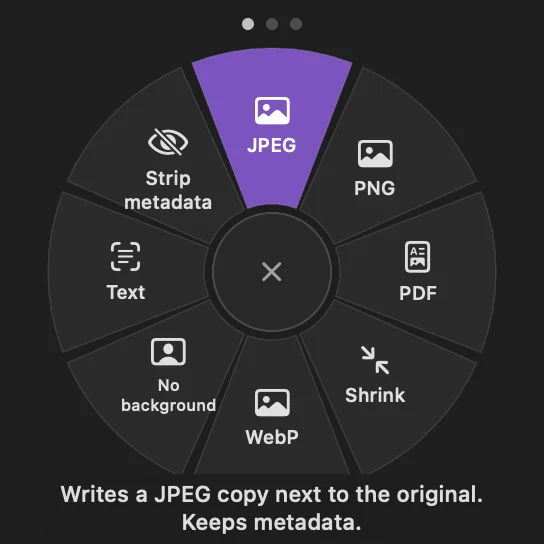
Née converts files from a ring at the pointer. Hold Option while you drag files, drop them on an action, and the result is saved next to the original. There are 51 actions for images, PDFs, video, audio, documents, fonts and archives, and they all run on your Mac. Your JPEG, née HEIC.
The trial is the complete app for seven days from the first time you open it, with no account and nothing to enter. Buying is a single $14.99 payment, with every update included. You get a license key by email and on the page after you pay. Paste it into the same app and it stays valid, with no second download. One key works on two of your Macs. Not useful? Email ben@purplelink.llc within 14 days of purchase (terms). Version 1.0.0, released November 2, 2026. 5 MB disk image. Needs macOS 14 or later.
Also in the Mac Suite: ModernTex, Outbound Veil, Legroom, Keyfeel, Tapefolio, Panely, Summonly, Née and Vitae Plus for life, $59.99 once.
How it works
Drag, and hold Option
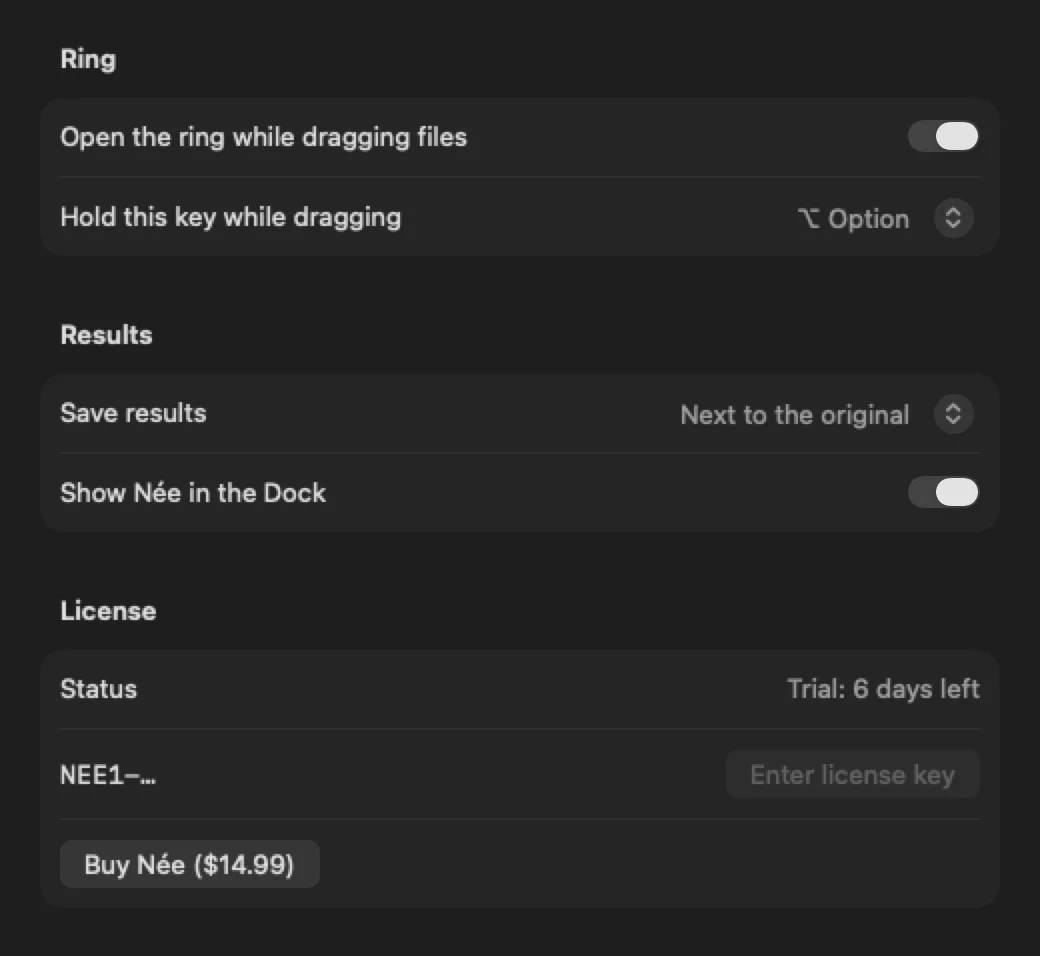
Start dragging one file or several in Finder. Hold Option. A ring of the actions that fit those files opens at the pointer. If Option is already taken in an app, Settings lets you use Control or Shift instead.
Drop on a slice
Each slice is one action, such as JPEG, Compress or Transcribe. The result is a new file next to the original, and the original is not changed.
Undo if you want to
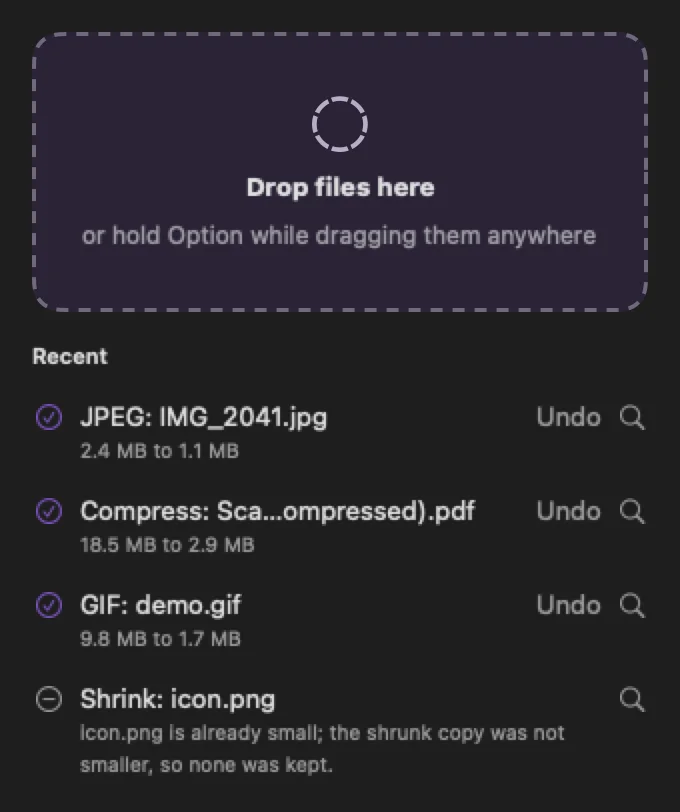
The menu-bar window lists every result. Undo moves a job's results to the Trash, so a wrong choice costs nothing.
You can also drop files on the menu-bar item or the Dock icon, or choose files in Finder and use the Services menu. Each opens the same ring without a drag.
Watch it work
A 24-second tour with no sound
The video is silent and has its own captions. It shows the ring opening over a photo, a file dropped on the JPEG slice, the PDF ring, the video ring, and the menu-bar window with its list of results and Undo. It is made from the app's own screenshots.
What it does
| Images | Writes JPEG, PNG, HEIC, AVIF, WebP, TIFF or GIF copies. Makes a copy at half size or 1920 px, or a smaller JPEG for email (2048 px at most, location removed). Removes the background, reads the text in an image into a .txt file, strips camera data and location, builds an .icns file, an Xcode icon set and web favicons from one image, puts images into one PDF, and renames photos by the date taken, such as 2026-11-02 14.05.33.jpg. |
|---|---|
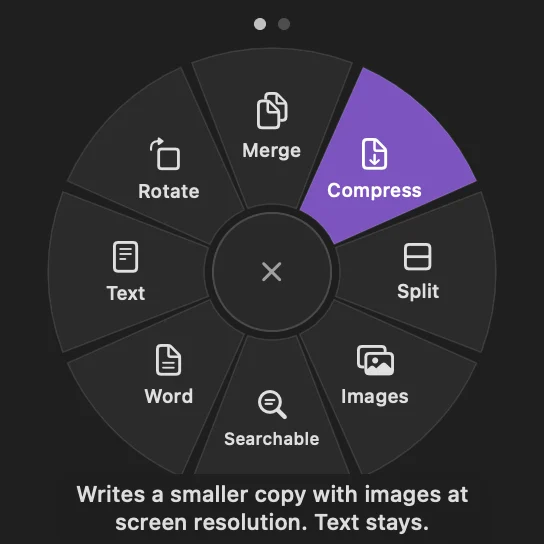
| PDFs | Merges PDFs and images into one file, splits a PDF into one file per page, compresses it, rotates it, writes each page as a 200 dpi PNG, makes a scan searchable by adding hidden text, writes the text to a .txt file, and writes the text, bold and italic to a Word document. |
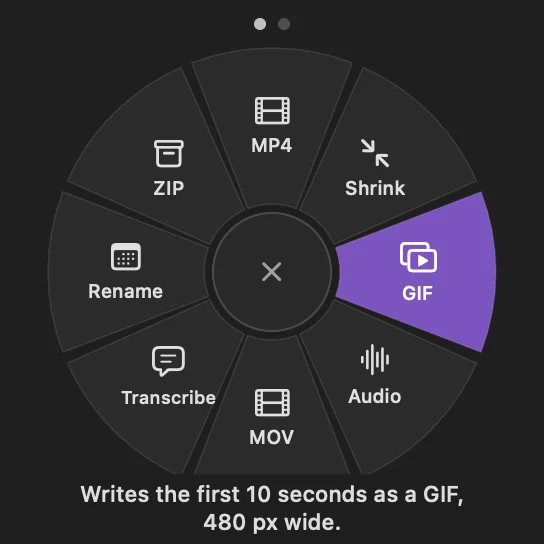
| Video | Writes an MP4 or MOV copy, a smaller MP4 (HEVC, 1080p at most), an animated GIF of the first 10 seconds, or the sound track as M4A. |
| Audio | Writes an M4A, MP3, WAV, FLAC or AIFF copy. |
| Transcription | Writes what is said in a recording as a .txt file and as .srt subtitles, recognized on your Mac with Apple's speech recognition. It asks for Speech Recognition permission the first time. |
| Documents | Converts Word, RTF, ODT, HTML and text files to DOCX, RTF, ODT, HTML, TXT or PDF. PDF output is for simple layouts. |
| Markdown | Writes a Markdown file as HTML, PDF or a Word document, with headings, lists, quotes, code, links and tables. |
| Fonts | Writes a WOFF web font, unpacks a WOFF font to TTF or OTF, and writes a one-page PDF specimen at sizes from 12 to 72 points. Check that a font's license allows web use before you convert it. |
| Archives | Unpacks an archive into a new folder next to it, and packs what you drop into one ZIP, 7Z or tar.gz file. |
The ring and the windows
Captures of the app. The ring changes with what you drag: a photo, a PDF and a video each get their own slices.
What it will not do
| Keep a PDF's layout in Word | PDF to Word writes the text, bold and italic. The page layout is not kept. |
|---|---|
| Convert PowerPoint or Excel | It handles text documents, not slides or spreadsheets. Word to PDF is for simple layouts, and a complex layout may differ. |
| Cut out every background cleanly | Background removal is poor on some images. The result is a new file, so the original is safe, and you can undo it. |
| Run every action on every Mac | AVIF writing, HEVC encoding and speech recognition depend on what the Mac supports. When an action cannot run, Née says why. |
| Change your originals | Results are new files next to the original. Renaming photos by date is the one action that renames the originals, and Undo renames them back. |
| Send your files anywhere | There is no cloud converter and there are no accounts. Nothing you drop on Née is uploaded. |
| Run on Windows, iPhone or iPad | It is a Mac app and needs macOS 14 or later. |
Privacy and permissions
Your files stay on your Mac
Conversion, text recognition, background removal and transcription all run on your Mac with Apple's own frameworks. There are no accounts and no analytics inside the app.
One use of the internet
The app checks for a new version. Nothing you drop on it is in that request. Details are on the privacy page.
Few permissions
While you drag, Née reads only the names and types of the files, and reads a file's contents after you drop it. It needs no Accessibility or Input Monitoring permission. Transcription asks for Speech Recognition the first time you use it.
Price and trial
Seven days free
The trial is the complete app, counted from the first time you open it. No account and nothing to enter.
$14.99, once
One payment in US dollars, through Stripe. After the trial, running an action asks for a license key, which arrives in the receipt email and on the page after you pay. The ring, History and Undo keep working. Every update is included.
One key, two Macs
The key unlocks Née on up to two of your own Macs, works offline and needs no second download. Refunds within 14 days: email ben@purplelink.llc.
System requirements
| macOS | 14 or later. |
|---|---|
| Mac | Apple silicon or Intel. |
| Internet | Not needed to convert. Used only for the update check. |
Frequently asked questions
What does Née need to run?
Do my files leave my Mac?
Does it change my original files?
How do I undo a result?
Does it need an Accessibility or Input Monitoring permission?
What if I drag from Photos, Mail or Safari?
What if another app already uses Option-drag?
Can it convert Word or PowerPoint files to PDF?
Does one license work on more than one Mac?
What happens when the trial ends?
How do I get help?
Can I get a refund?
Write to Ben
A question about Née that this page does not answer? Write to Ben here.
Prefer your own mail app? Write to ben@purplelink.llc. The form delivers your message by email through Resend and does not store it on this site. Privacy.
Free file converters
Née is a Mac app. On another computer, these free pages do the same image conversions in a browser tab, one file or a batch at a time, and nothing is uploaded.
- HEIC to JPG
- WebP to PNG
- AVIF to JPG
- PNG to ICNS: a macOS icon from one image.
- PNG to ICO: a favicon or Windows icon.
- JPG to PDF: pictures joined into one PDF.
Try it on a folder of files you already have.
Seven days of the complete app, no account and nothing to enter. Then decide whether to keep it.
macOS 14 or later · Apple silicon and Intel