
Lenses
Lenses is a menu-bar app for AR glasses plugged into a Mac. When the glasses connect, it applies the profile you chose: a sharp display mode, 120 Hz, a black margin around the picture, a night tint, Dark Mode and a bigger pointer. When you unplug them, it puts the Mac back.
Checkout shows the price in your local currency, and you can switch back to US dollars.
Add any second Mac Suite app and save 25% on both, or any third for 40% off all three. Choose the apps.
Tested on RayNeo Air. It also recognises XREAL and VITURE glasses by name, which I have not tested. For any other glasses, choose “Use this display as my glasses” from the menu.
Needs macOS 14 Sonoma or later and an Apple silicon Mac. The trial is the complete app for seven days from the first time you open it, with no account. Buying is one $4.99 payment with every update included, and you can ask for a full refund within 14 days. The license key arrives by email and on the page after you pay.
Also in the Mac Suite: ModernTex, Outbound Veil, Legroom, Keyfeel, Tapefolio, Panely, Summonly, Née, Lenses and Vitae Plus for life, $59.99 once.
Lenses collects nothing. The only network request it makes is the update check. Its settings stay on your Mac.
New to AR glasses on a Mac? Read Setting up your new VR/AR glasses with a Mac. It covers each setting by hand, and says where macOS cannot do it.
See it work
The glasses are plugged in, Lenses applies a profile, and the display changes while you watch. The video loads from YouTube only when you press play.
Before and after
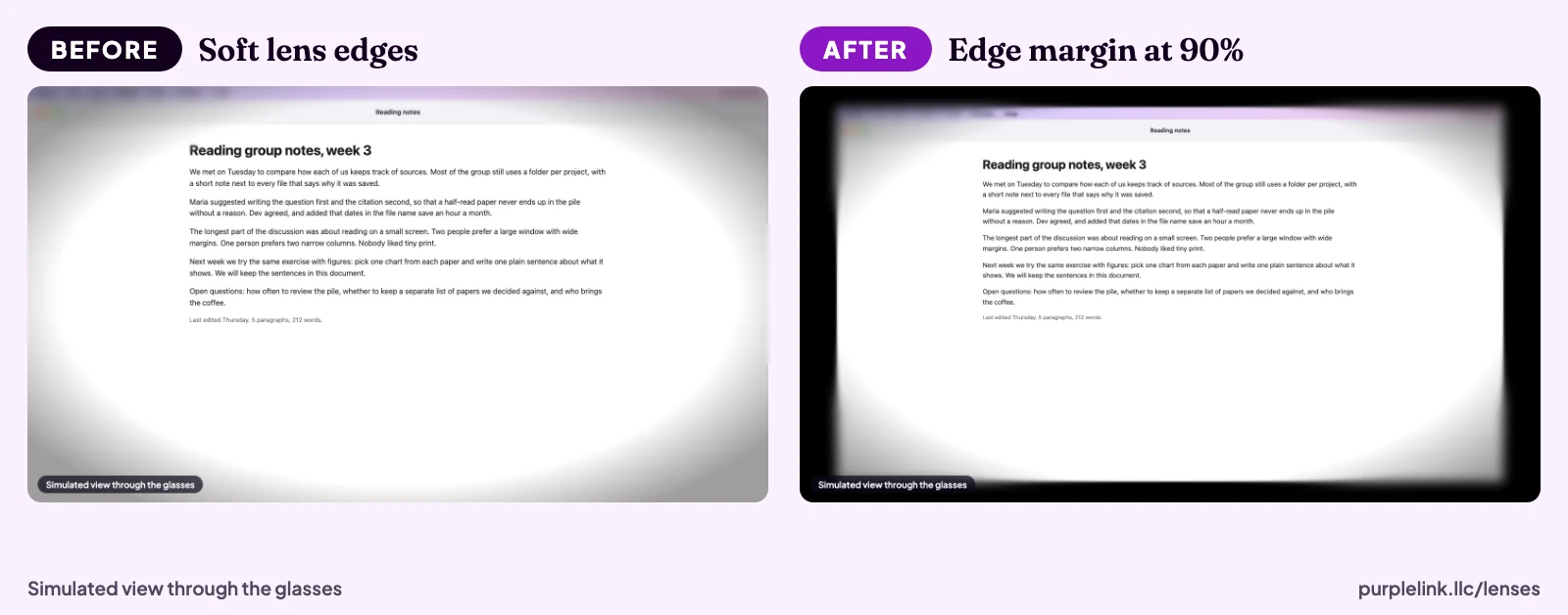
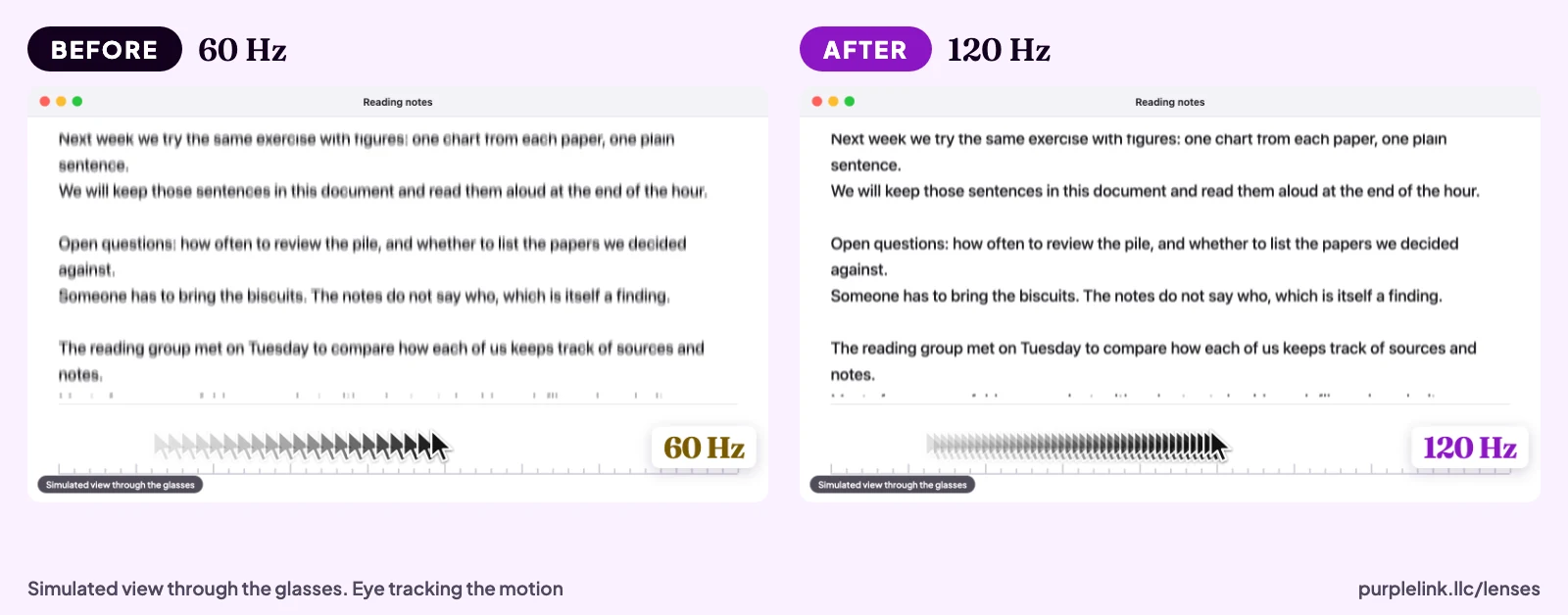
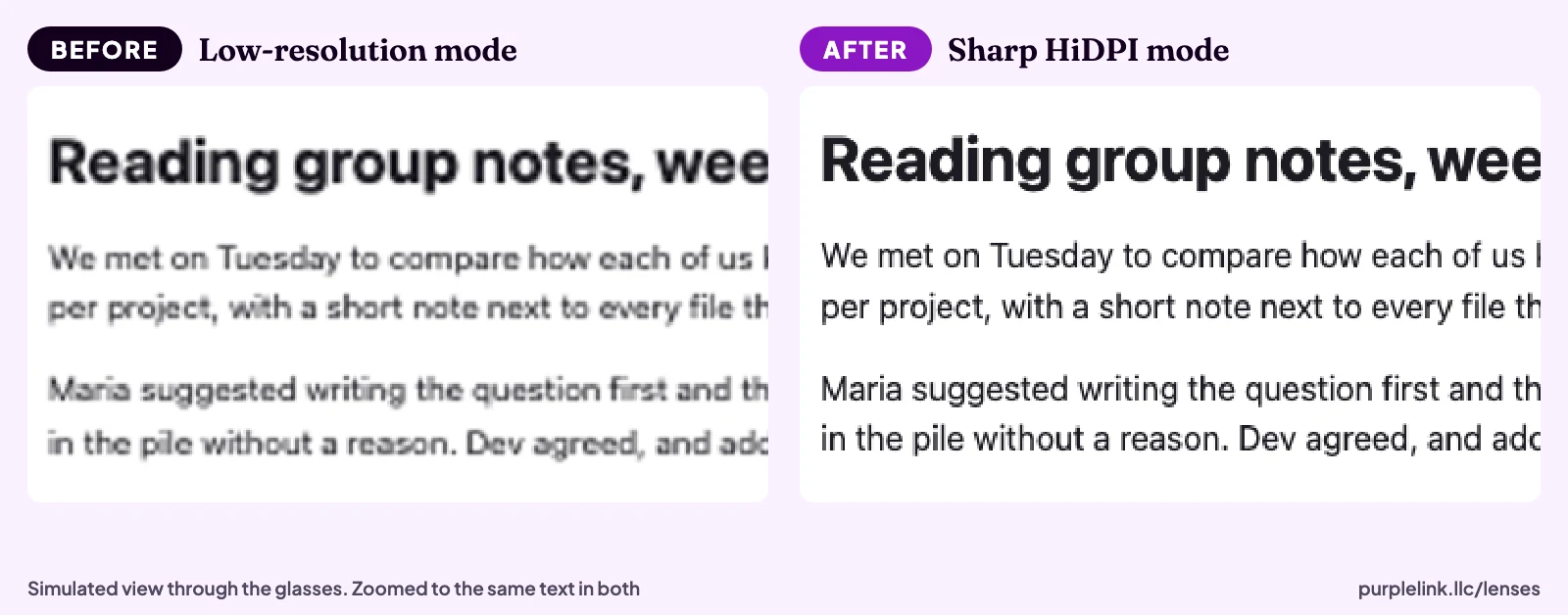
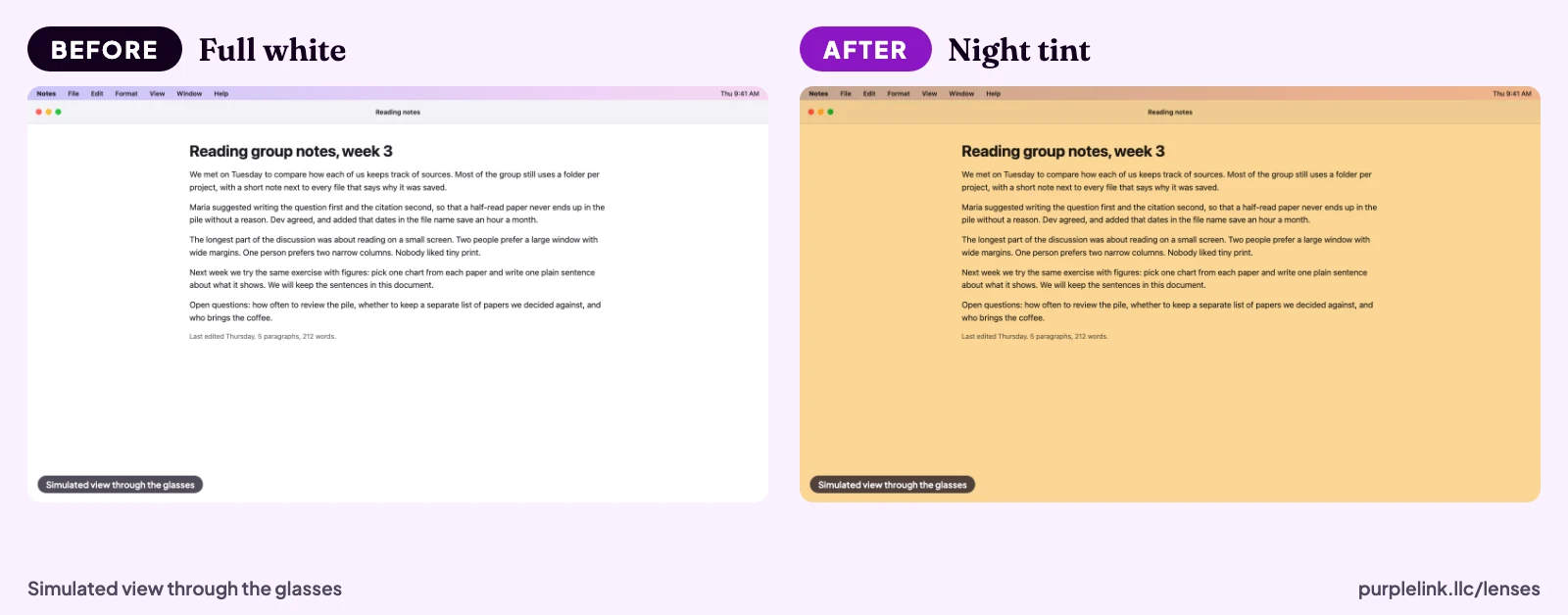
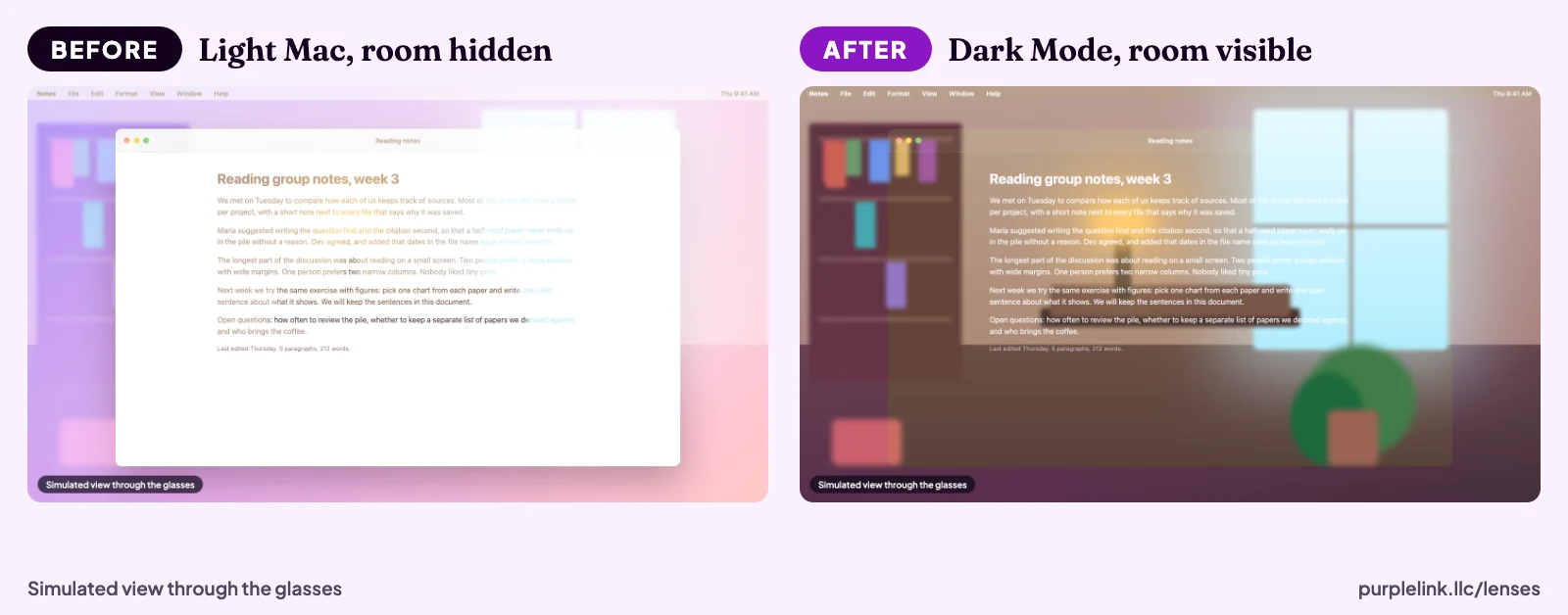
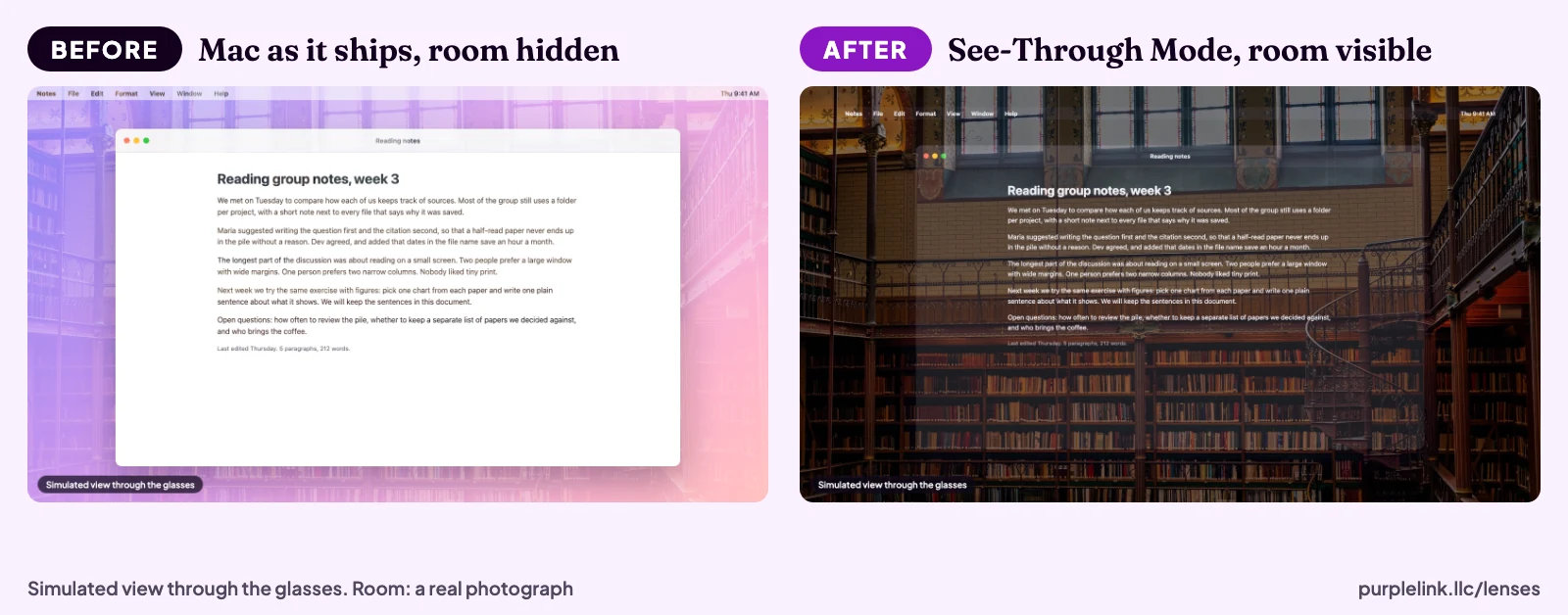
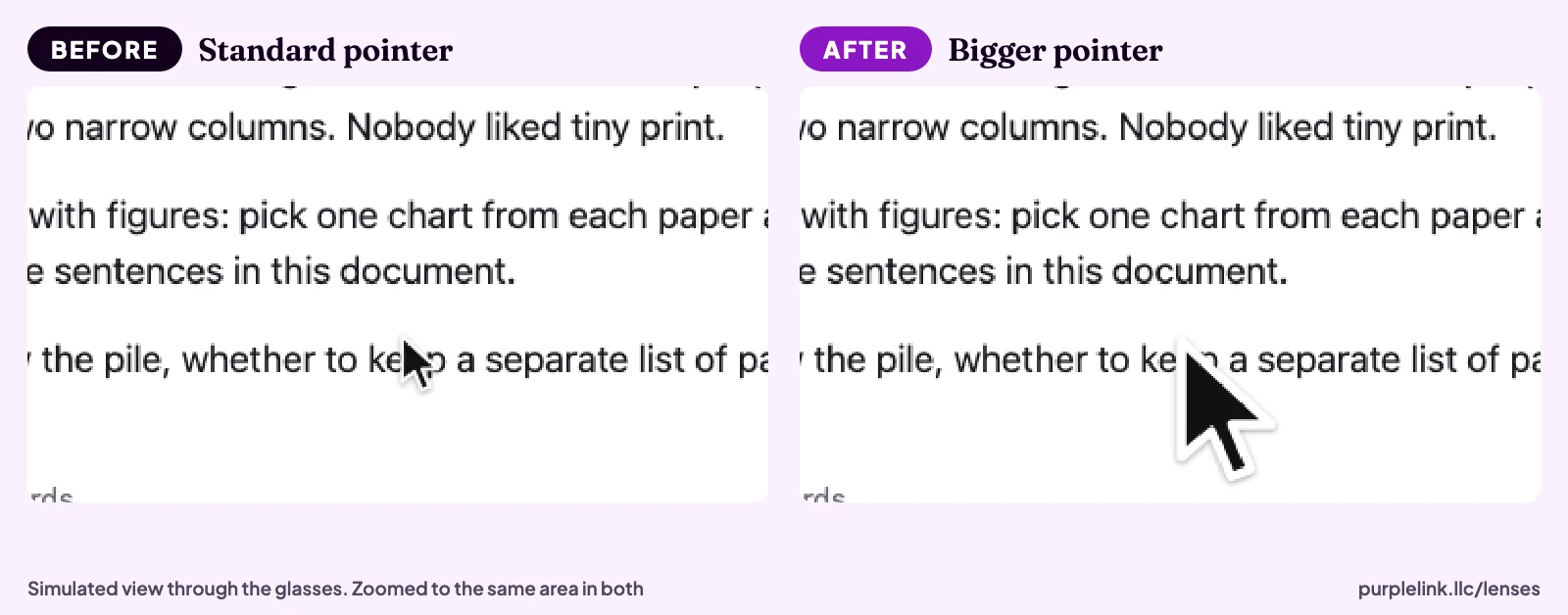
Each pair shows one setting. These are simulated views through the glasses, made from real Mac screens; a camera cannot capture what you see in the lenses.
Why an app, when System Settings has a Displays pane
Three things System Settings cannot do for these glasses
It has no edge margin, so the soft edges of the lenses always show picture. Night Shift does not reach the glasses. And nothing applies your settings when the glasses connect or puts them back when you unplug. The other settings, such as the sharp mode and Dark Mode, you can set by hand, and the guide below shows how.
Plug in, and it is set up
Choose a profile once. Each time the glasses connect, Lenses applies it. When they disconnect, or when you quit Lenses, it puts the Mac back as it was.
Free tips first
Each setting is explained in a guide to setting up VR and AR glasses with a Mac, with the by-hand version where macOS allows one. You can do much of it without Lenses.
What it does
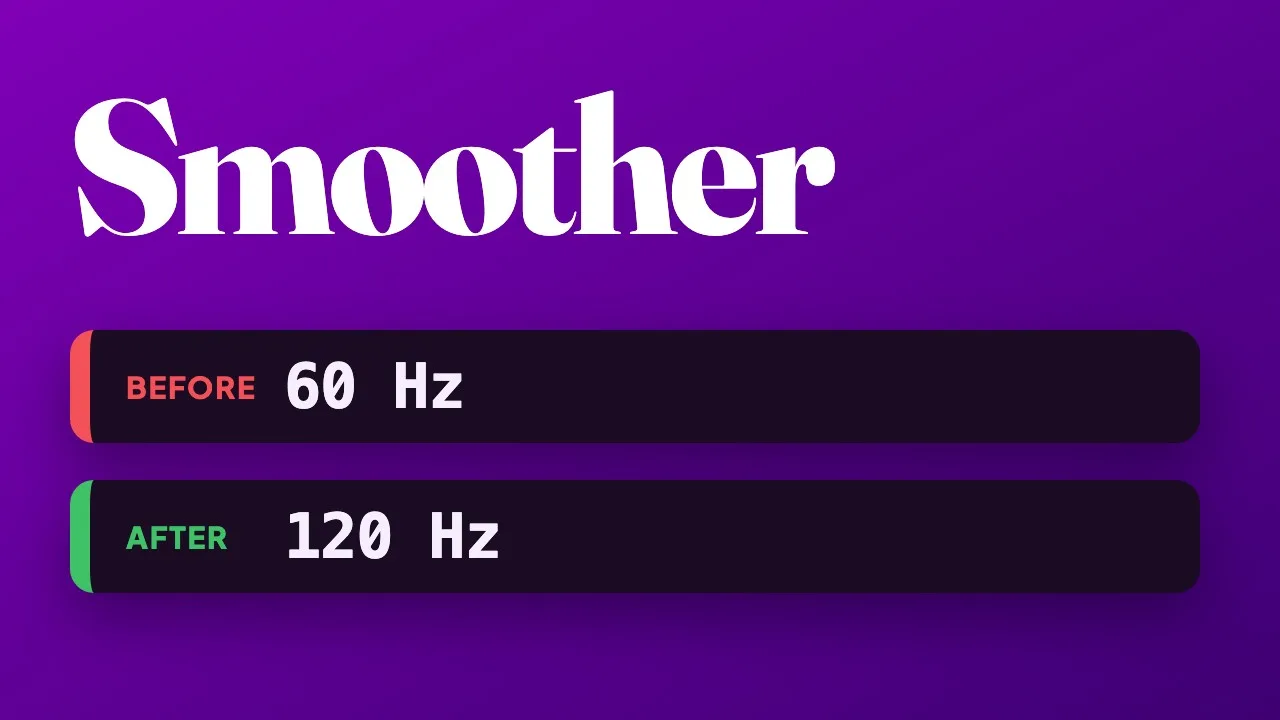
| Sharp mode | A HiDPI mode, where text is drawn at 2x and scaled down, and 120 Hz where the glasses offer it. If a profile’s exact size is not offered by the glasses, Lenses picks the nearest HiDPI size. |
|---|---|
| Layout | Mirror the laptop, put the glasses above the laptop, or place them side by side. |
| Edge margin | Shrinks the picture to 95%, 90% or 85%, or leaves it off, so the soft edges of the lenses show black with the pixels off. This is underscan, which System Settings does not offer for these glasses. |
| Night tint | Off, Warm, Night or Candle, with an automatic setting from 9 PM to 7 AM. Whenever macOS Night Shift is on, the glasses get a matching warm tint, because Night Shift itself does not reach them. |
| Dark Mode and pointer | While the Mirror 70% profile is on, Lenses turns on Dark Mode and a bigger pointer, then puts both back afterwards. |
| See-Through Mode | A switch in the menu. Black is clear on these glasses, so Lenses turns on Dark Mode, makes the desktop black and keeps an edge margin of at least 10%. Only your windows light up, and you see the room around them. Your desktop picture comes back when you unplug. |
| Restore | On unplug, and when you quit, the Mac goes back to how it was. |
| Sound | Optionally plays sound through the glasses. |
| Open at login | A switch in its settings. |
Seven profiles
- Optimal. 1920 by 1080 HiDPI, glasses above the laptop, 120 Hz.
- Mirror. 1920 by 1080 HiDPI, 60 Hz.
- Mirror Big Text. 1600 by 900 HiDPI, 120 Hz.
- Big Text. 1600 by 900 HiDPI, glasses above the laptop.
- Side by Side. The glasses placed beside the laptop screen.
- Cinema. Native 1080p at 120 Hz, with the laptop screen dark.
- Mirror 70%. The picture at 70%, with Dark Mode and a bigger pointer.
Which glasses
Tested on RayNeo Air. Lenses also recognises XREAL and VITURE glasses by their display name, so it should find them on its own, but I have not tested it on them. If your glasses are something else, or Lenses does not spot them, open its menu while they are plugged in and choose “Use this display as my glasses”. If you try it on XREAL or VITURE, I would like to hear how it goes: ben@purplelink.llc.
Privacy
Collects nothing
Lenses collects nothing. There is no account, and its settings stay on your Mac. Checking your license happens on the Mac, with no request to us.
One network request
Lenses checks once a day for a new version and asks before installing one. That request carries the app version and nothing about your displays.
Details are on the privacy page.
What it is not
| A Mac App Store app | It uses private macOS display calls, which the Mac App Store does not allow. It is a notarized direct download. |
|---|---|
| Tested everywhere | Tested on RayNeo Air only. XREAL and VITURE are recognised by name and untested. |
| Part of the Mac Suite | Yes. Lenses is also in the Mac Suite, at no extra cost. |
| Cross-platform | Mac only, on Apple silicon. |
Frequently asked questions
What glasses does it work with?
What does it need to run?
Why is it not in the Mac App Store?
What does the edge margin do?
Does Night Shift work on my glasses?
What happens when I unplug the glasses?
Does it collect anything?
Is there a trial, and what happens when it ends?
Can I get a refund?
Is it part of the Mac Suite?
Write to Ben
A question about Lenses that this page does not answer? Write to Ben here.
Prefer your own mail app? Write to ben@purplelink.llc. The form delivers your message by email through Resend and does not store it on this site. Privacy.
Plug in and read.
Seven days free, then one payment of $4.99 and a 14-day refund.
macOS 14 or later, Apple silicon. Tested on RayNeo Air.