
Researchers preparing to submit use Purplelink's Word Counter to get a main-text word count, excluding references and appendices, and to review style diagnostics in the same pass.
Steps
-
Go to purplelink.llc/tools/word-counter/ and click the Upload a file tab.
-
Drag your manuscript onto the upload area, or choose a file. Supported formats: PDF, Word (.docx), LaTeX (.tex), Markdown, RTF, ODT, HTML. Files up to 20 MB.
-
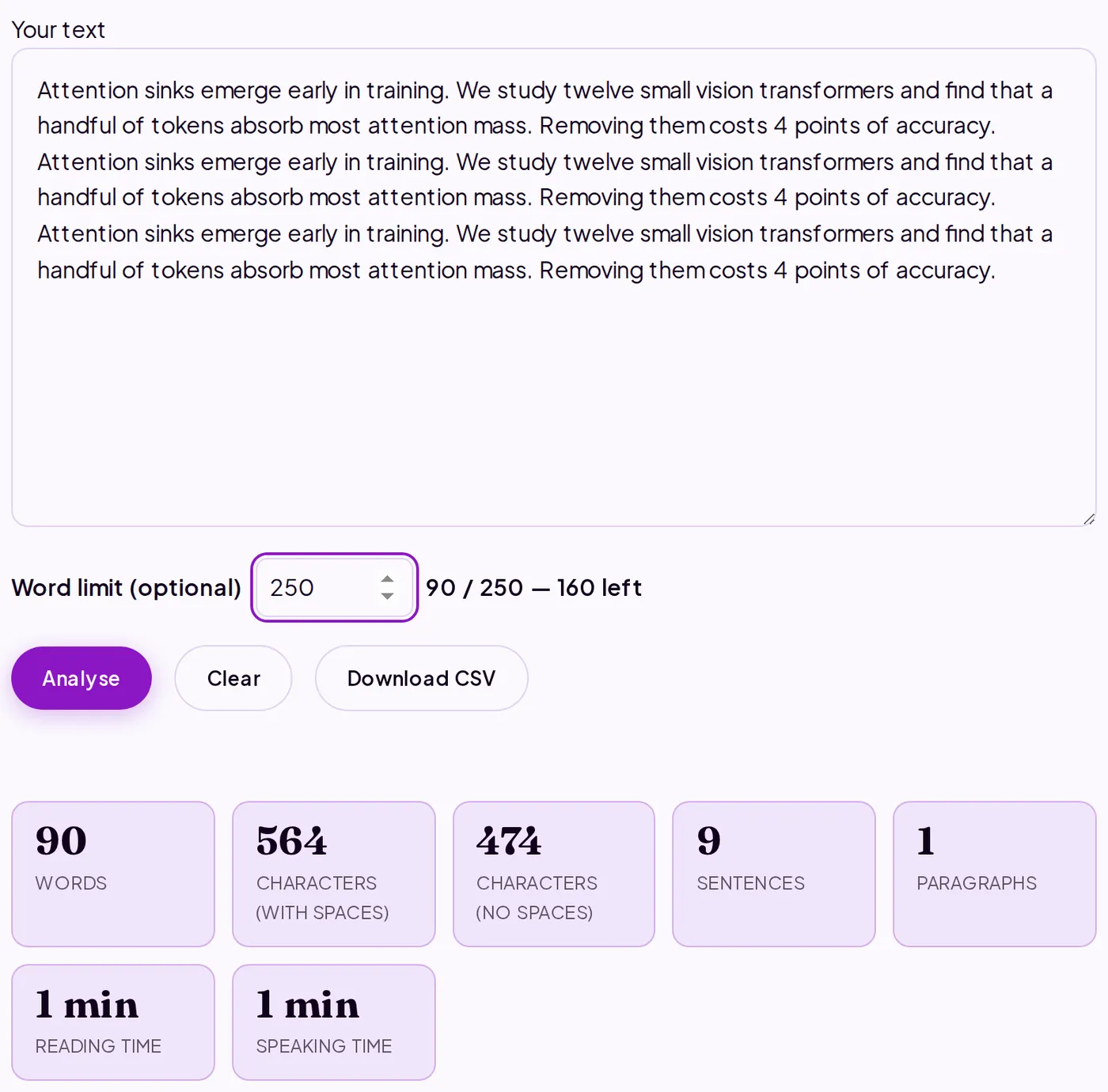
Enter your journal's limit in the Word limit field.
-
Click Analyse. The tool splits your document into sections: Abstract, Methods, Results, Discussion, References, Appendix, and Figure Captions.
-
Deselect References, Appendix, and Figure Captions using the section toggles. The total updates to show only the sections you've kept.
-
Compare the main-text total against your limit. If you're over, the limit field shows the deficit in red.
-
Scroll to the Style flags panel. It highlights passive-voice sentences, hedging phrases, weasel words, and academic clichés. Each flag is a candidate to tighten, not a mandatory edit.
-
Click Download CSV to export all statistics. Keep the file for tracking counts across revisions.
What's happening under the hood
Uploaded files are converted to plain text in an ephemeral server container, then discarded. Nothing is written to storage. All statistics run locally in your browser after that.
Section detection matches heading patterns against common academic section names. For LaTeX files it reads section commands directly. For PDFs and Word documents it uses heading styles or capitalized headers. Detection is best-effort: if a split looks wrong, export to Word or LaTeX and re-upload.
The style flags locate specific constructions without scoring them or producing a verdict. The AI-writing-pattern audit works the same way: it flags phrases common in AI-generated prose, with no probability or conclusion attached.
Q&A
My journal excludes figure captions from the limit, but the tool isn't separating them.
Uncheck Figure Captions in the section panel. If your captions lack consistent heading labels, the tool may miss them. Remove them from the file before uploading in that case.
Will this count match what the journal's submission system shows?
Close, but not guaranteed. Systems differ on hyphenated compounds and numbered lists. Use this as your working count and verify in the submission portal before submitting.
Is the Readability section useful for academic writing?
The scores (Flesch-Kincaid, Gunning Fog, SMOG) reflect sentence and word length. A high grade level is expected in technical prose. The scores are most useful for spotting passages that could be split.
The Word Counter is free to use at purplelink.llc/tools/word-counter/.
For the abstract alone, the free Abstract Checker compares your count with the limit of 25 journals and conferences. If you are submitting to one of them, the Journal Pack (Paper Review, $11) checks the word and abstract limits and required sections against that venue's rules for you, alongside the review itself. For a running record across a longer document like a thesis, rather than a single check, see how to track thesis word count and readability while you write.